

Work Notes (Lighting)
This section will explore the Work Notes module.
We've explored setting up some cue notes already but let's discuss the Work Notes module, it's structure, and when it may fit your needs compared to other modules.
Overview
The Work Notes module is designed to be a hub for lighting work notes but could be augmented to work for your departmental needs as well. One of the core benefits of using the Work Notes module is the ability to import your lighting hookup via CSV. (See more about hookup integration here.)
Page Layout
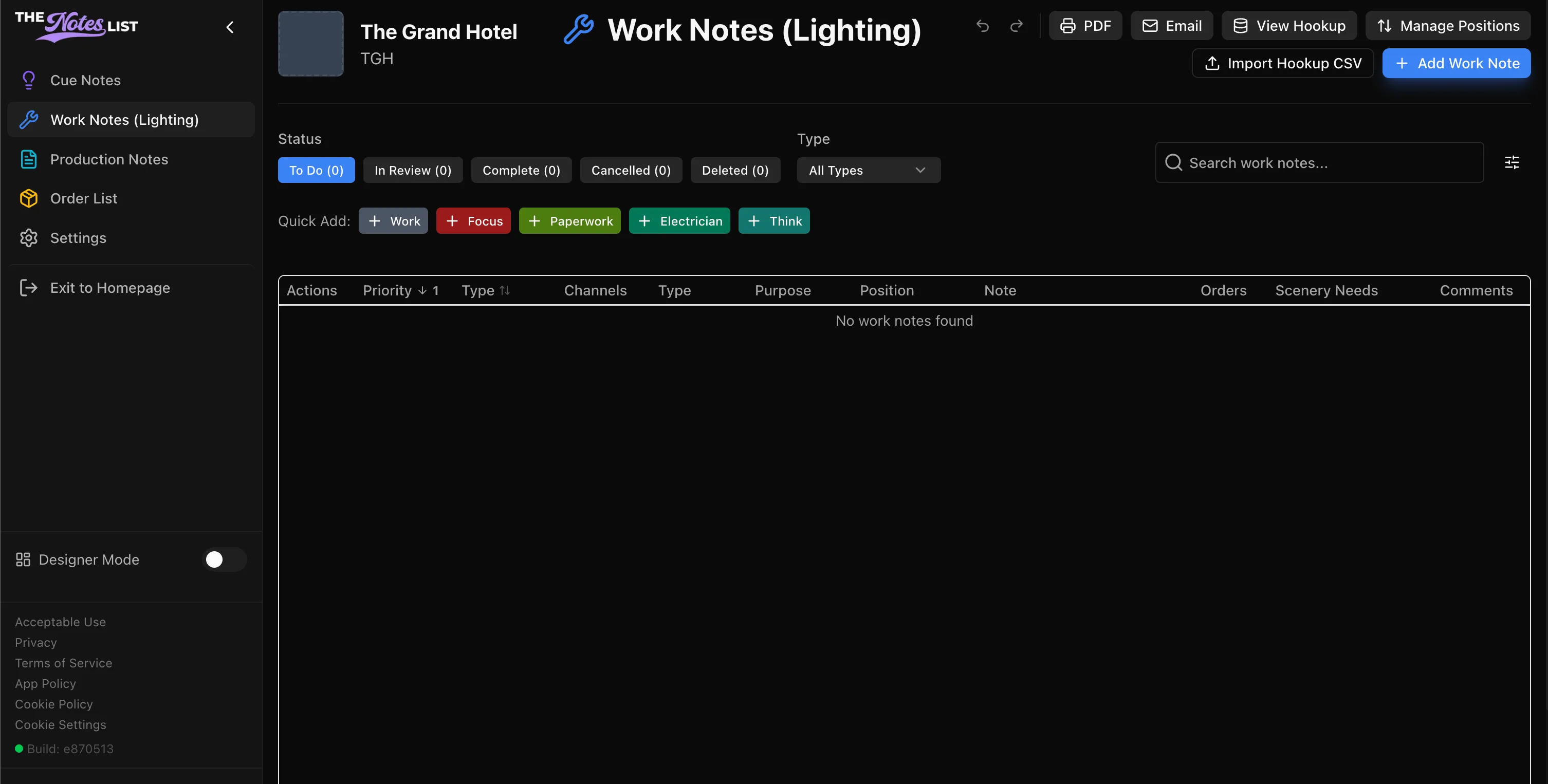
You'll notice the quick adds in the Work Notes module are different from those in the Cue Notes module. These are geared more towards the typical type of lighting work note you may have. The quick adds for the Work Notes module are:
- Work
- Focus
- Paperwork
- Electrician
- Think
As with any module, these are fully customizable in the settings window.
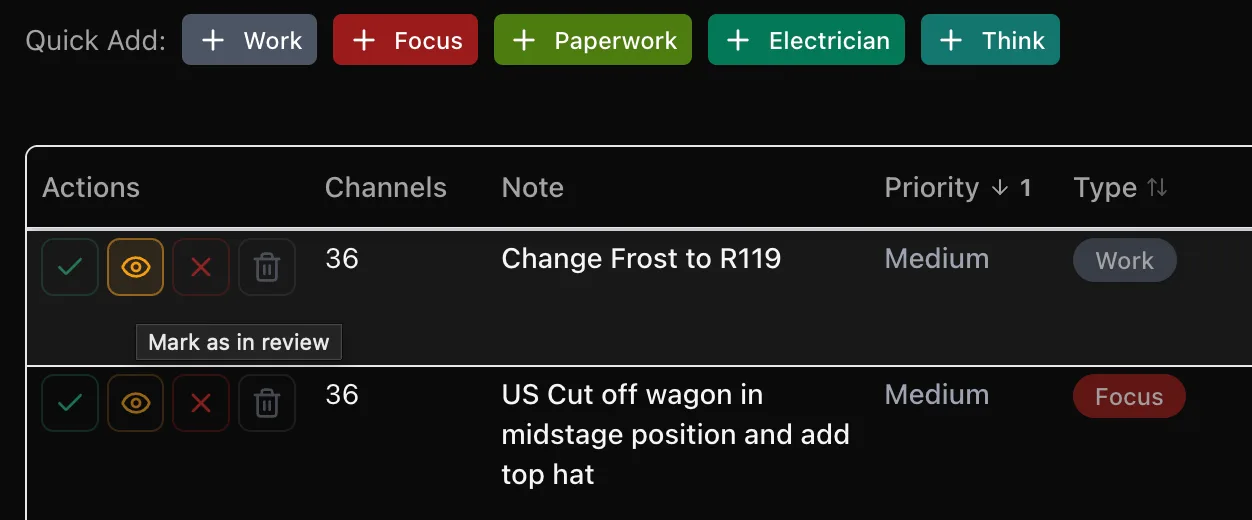
Notes in Review
The Work Notes module adds an "in review" status for added communcation between working departments. It appears as such:
Adding Work Notes
The process for adding notes is very similar to the Cue Notes module so let's just examine a few of the differences.
Let's generate a focus note as an example. Say we noticed channel 36 could use an upstage cut. Let's select [ + Focus ] and add that focus note. A window will open:
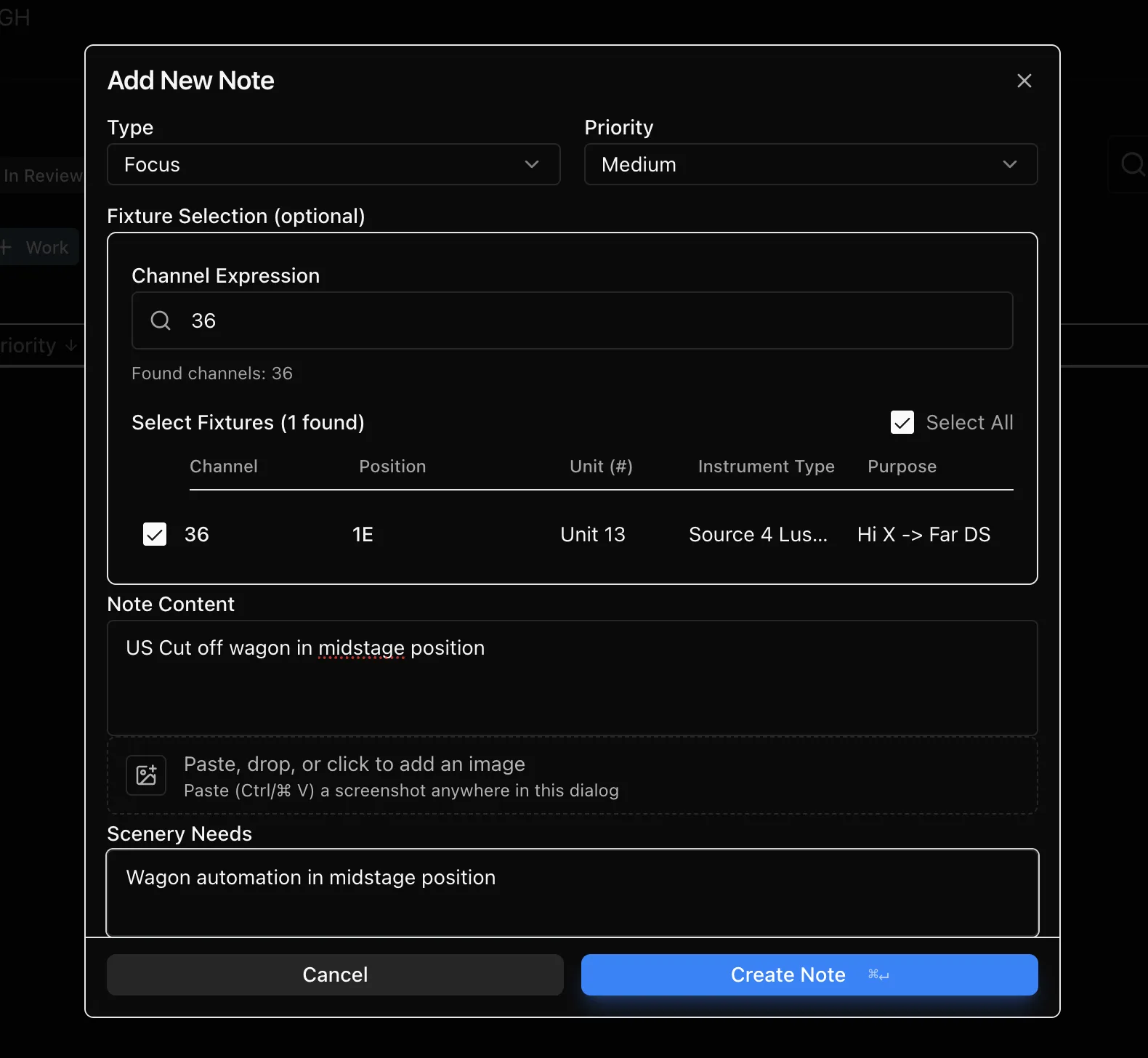
You'll find that this window is incredibly similar to the one for the Cue Notes module with a few notable difference:
Instead of a tab for Cue Number, you are provided a tab to input the Channel Expression to identify the fixture corresponding to the work note.
For this example I've already imported my channel hookup so when I input my channel number, "36", into the Channel tab, The Notes List found and populated the fixture information automatically.
Order List Integration
Within the window for a new note in the Work Notes module, The Notes List provides an option to create a record of what materials may be needed to complete the note. This can be found in the Add New Note window by scrolling to the bottom of the window.
For an example, I'm adding a work note for Channel 36 to get a frost change.
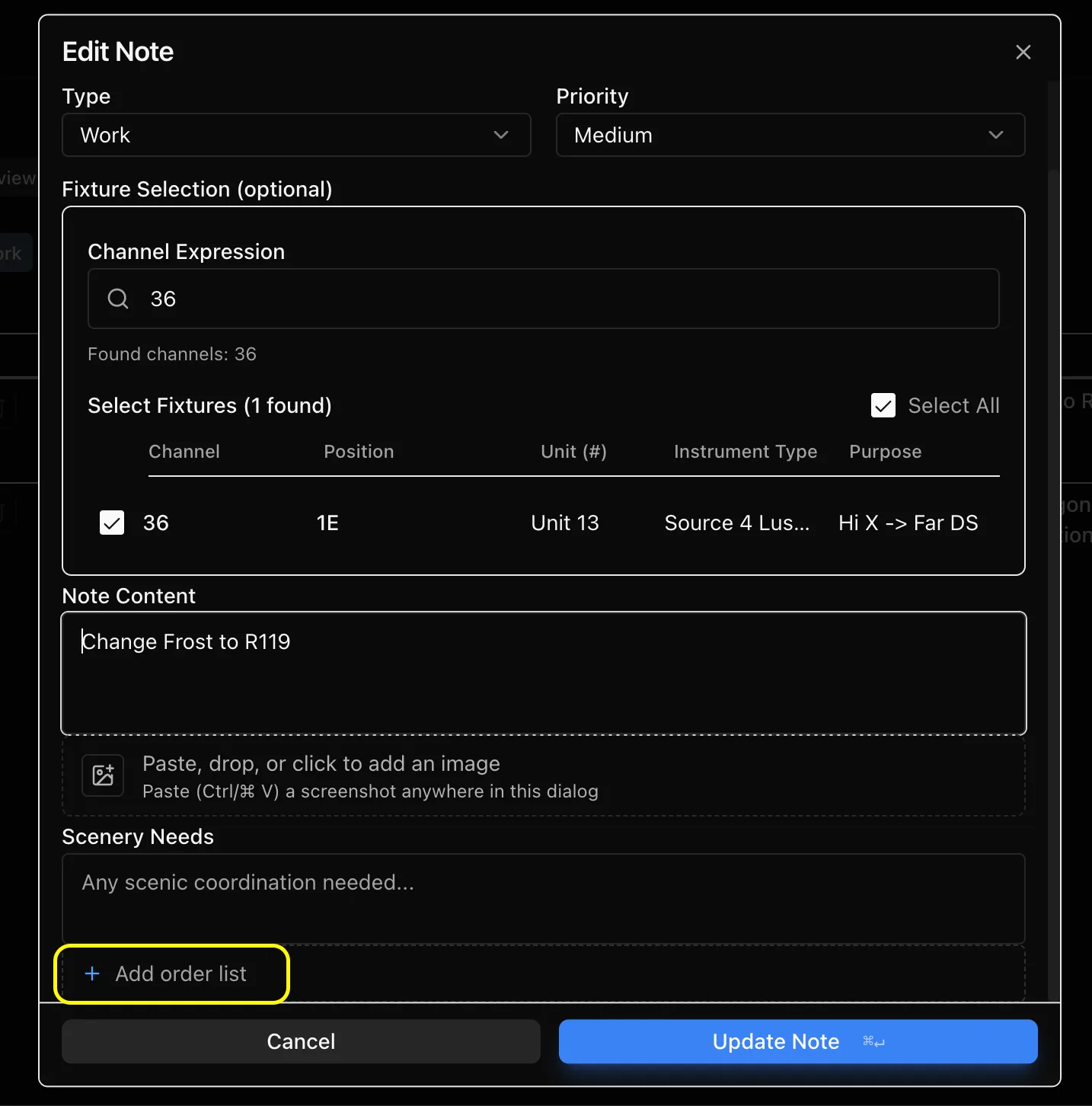
By clicking [ + Add Order List ] an addition to the window will appear. In this window you can input the item you wish to add to the Order List.
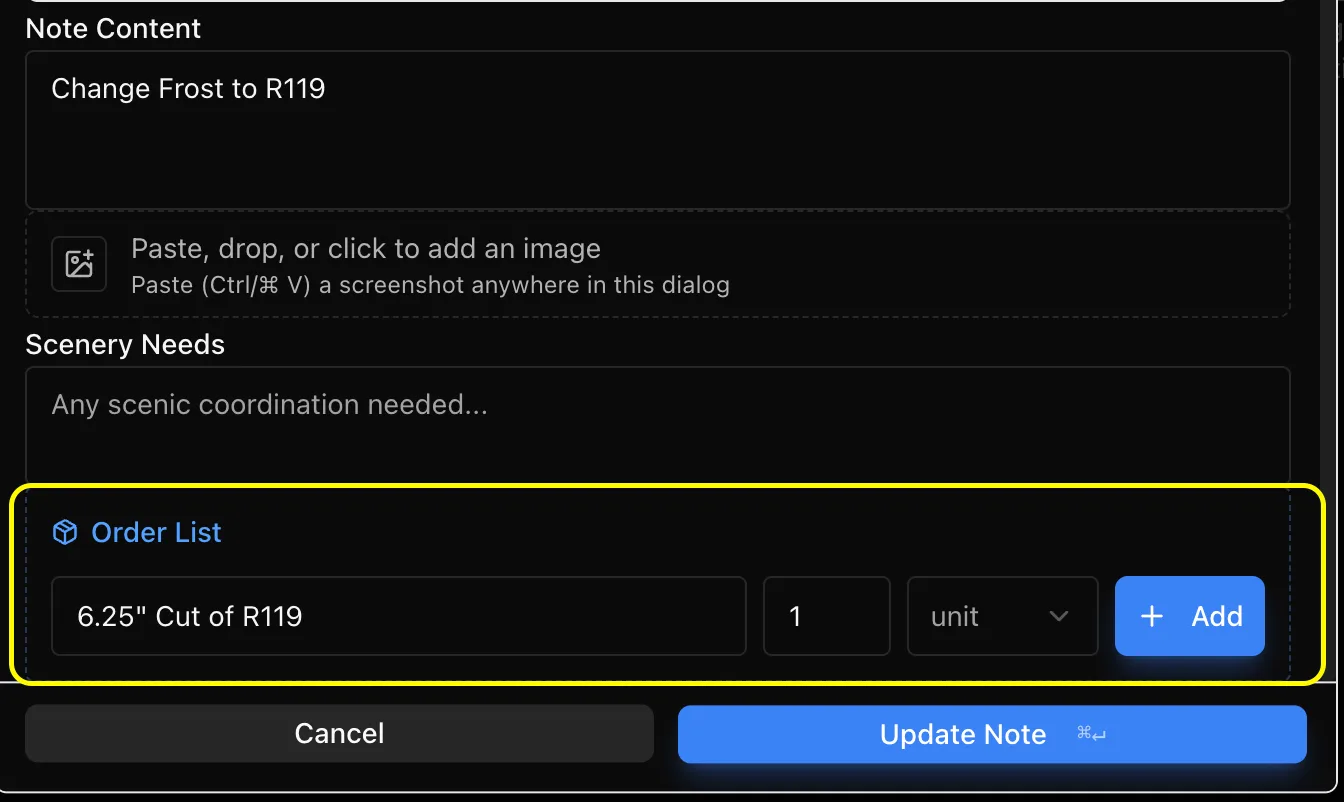
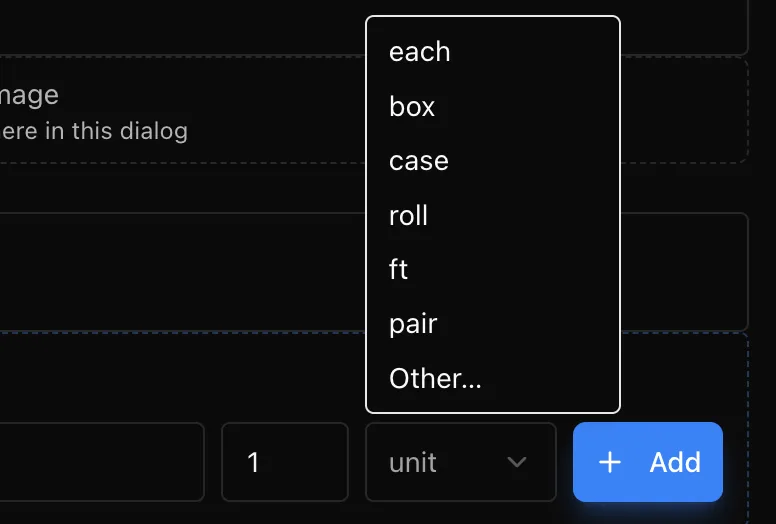
Once you have your item(s) configured, Click [ + Add ] to place the item on the Order List.
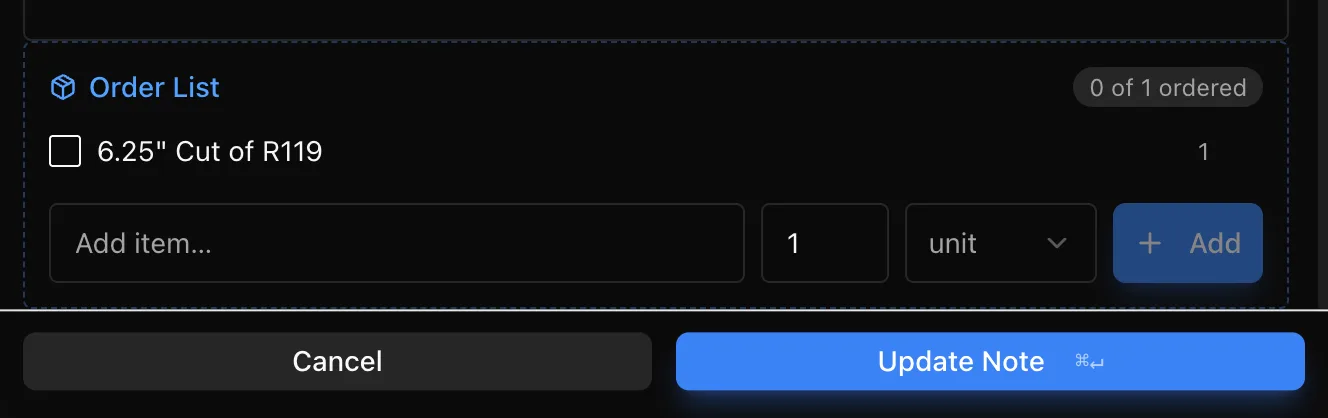
Once added, the item will appear a few places within The Notes List. The first being within the note window itself. It will show the number of each item ordered and provide a checkbox to mark when the order is complete.
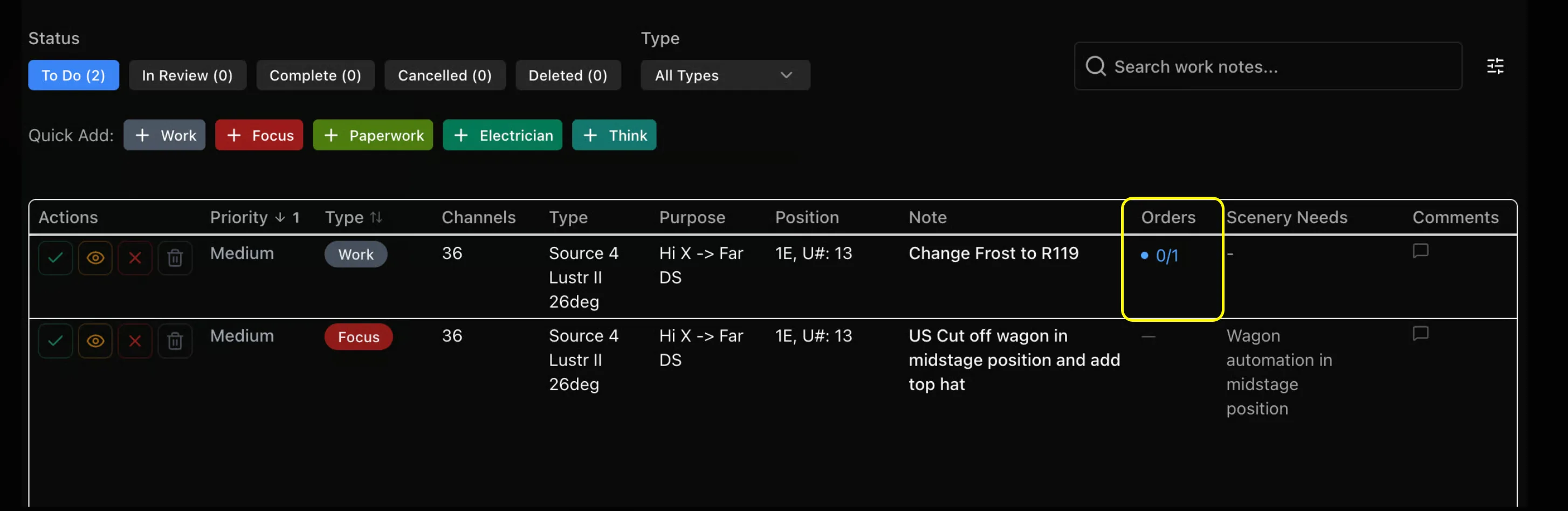
The second location being on the main Note Taking page. An added column will show the number of [ orders filled / orders total ] right on the main page.
The final place you can view your Order List now that you've completed it is the Order List module. For more information on the Order List module, click here.
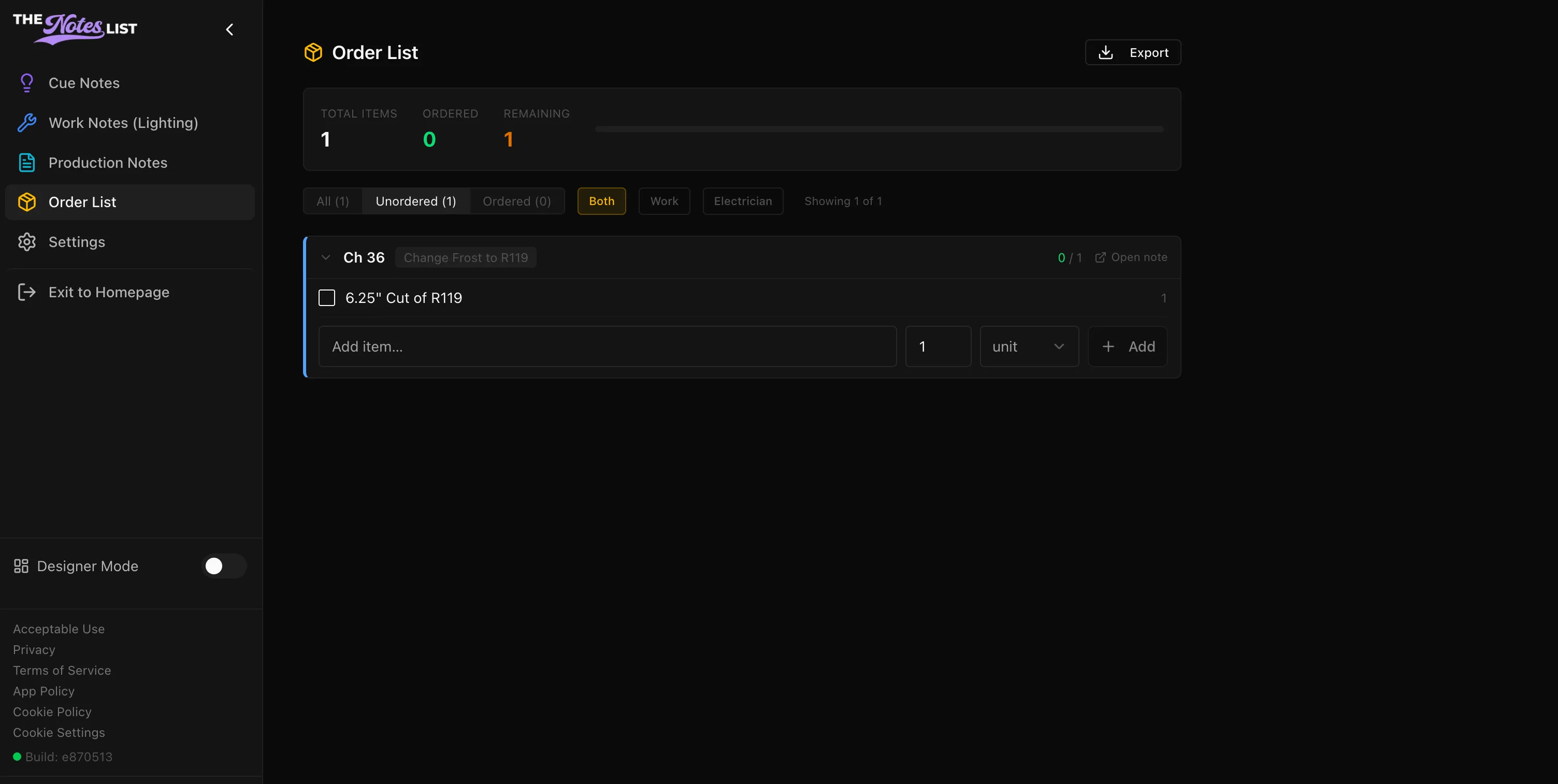
Work Note Columns
Also to note about the Work Notes module would be the availability of lighting specific columns to view in the main notes area.
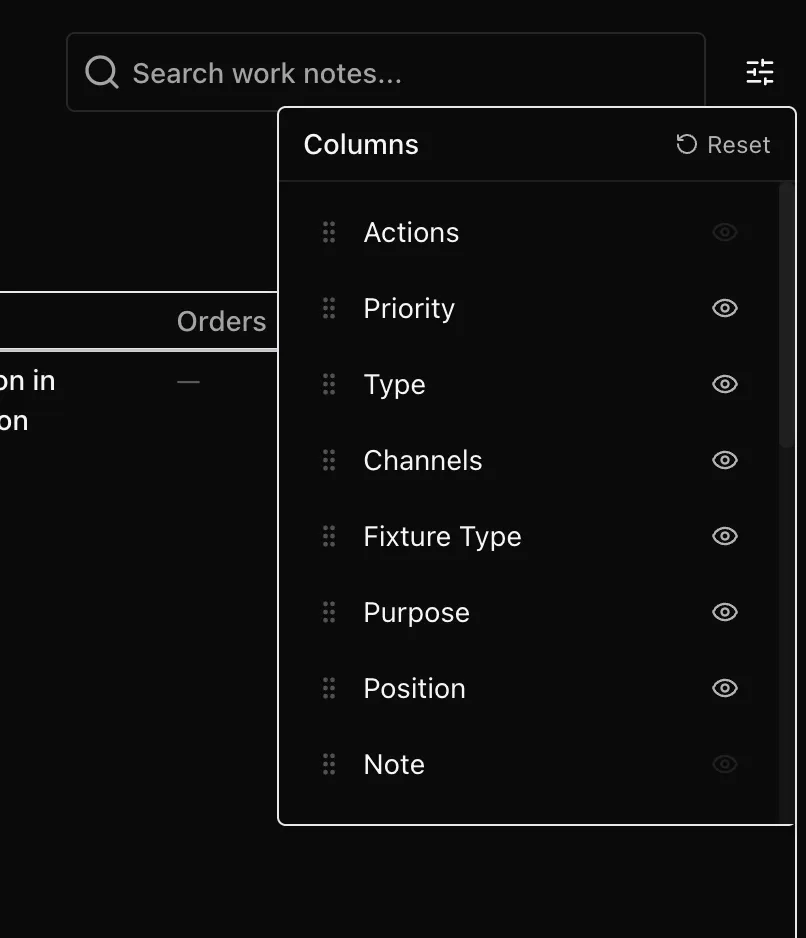
These page specific columns include:
- Channel(s)
- Fixture Type
- Purpose
- Position
These lighting specific columns all come preset as viewed in the Work Notes module.