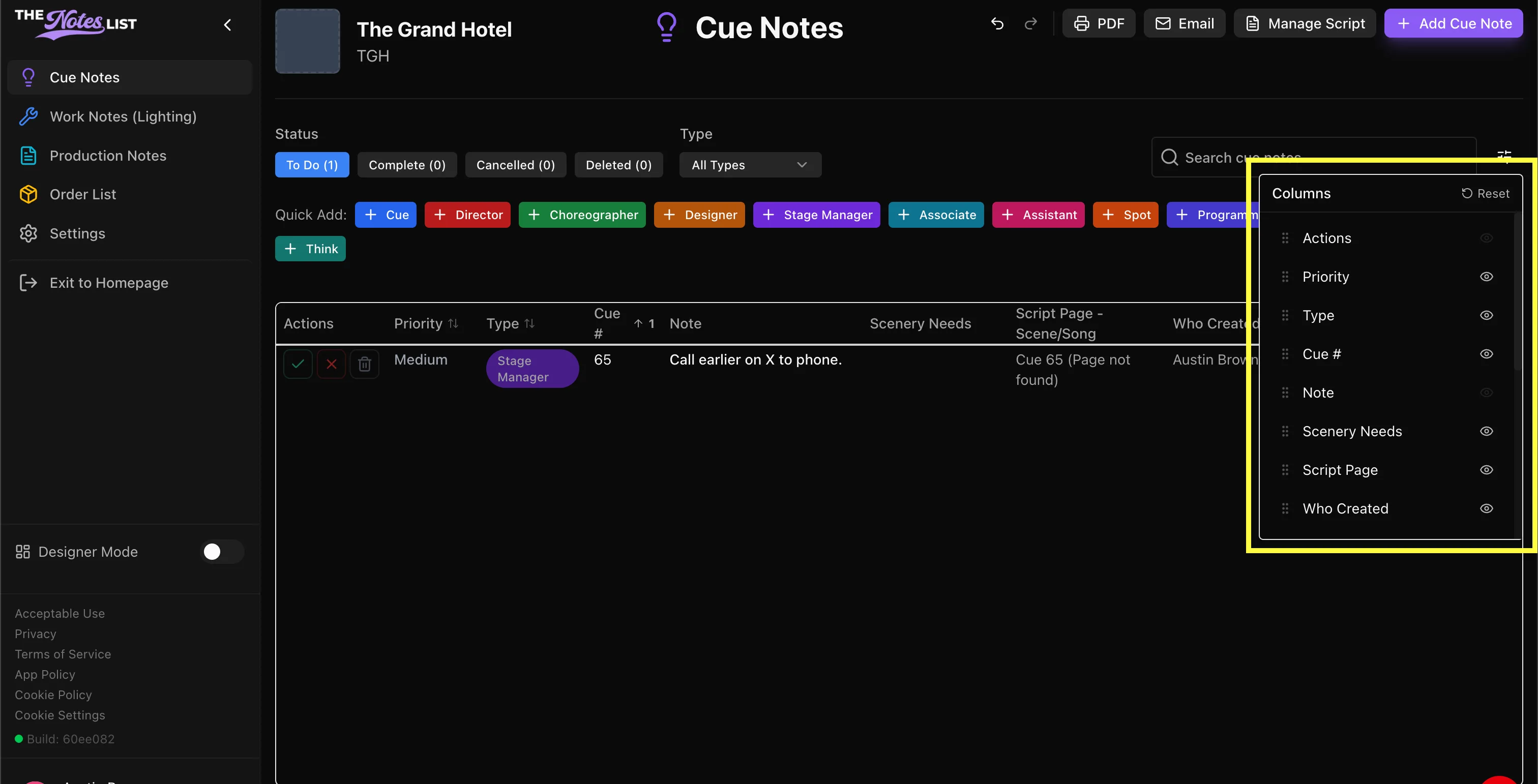
Setting up your Workflow
Base projects in The Notes List are provided with generic "Quick Add" options so you can jump right in to taking notes. These are fully customizable at any time.
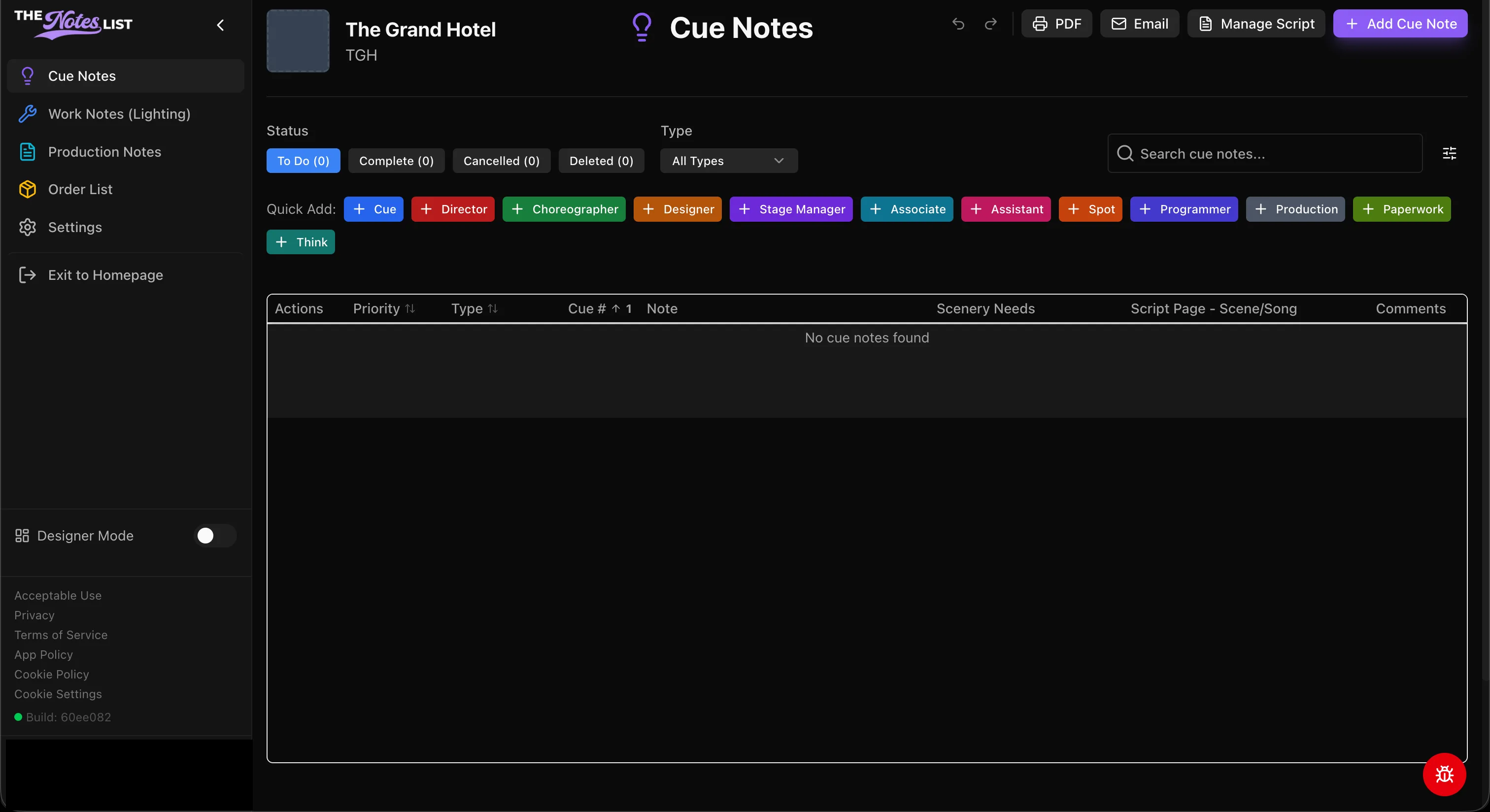
Modules Tab
The main layout of TheNotesList is split into two main windows. The modules tab and the note-taking tab. The modules tab can be found on the left hand side of your screen as seen here:
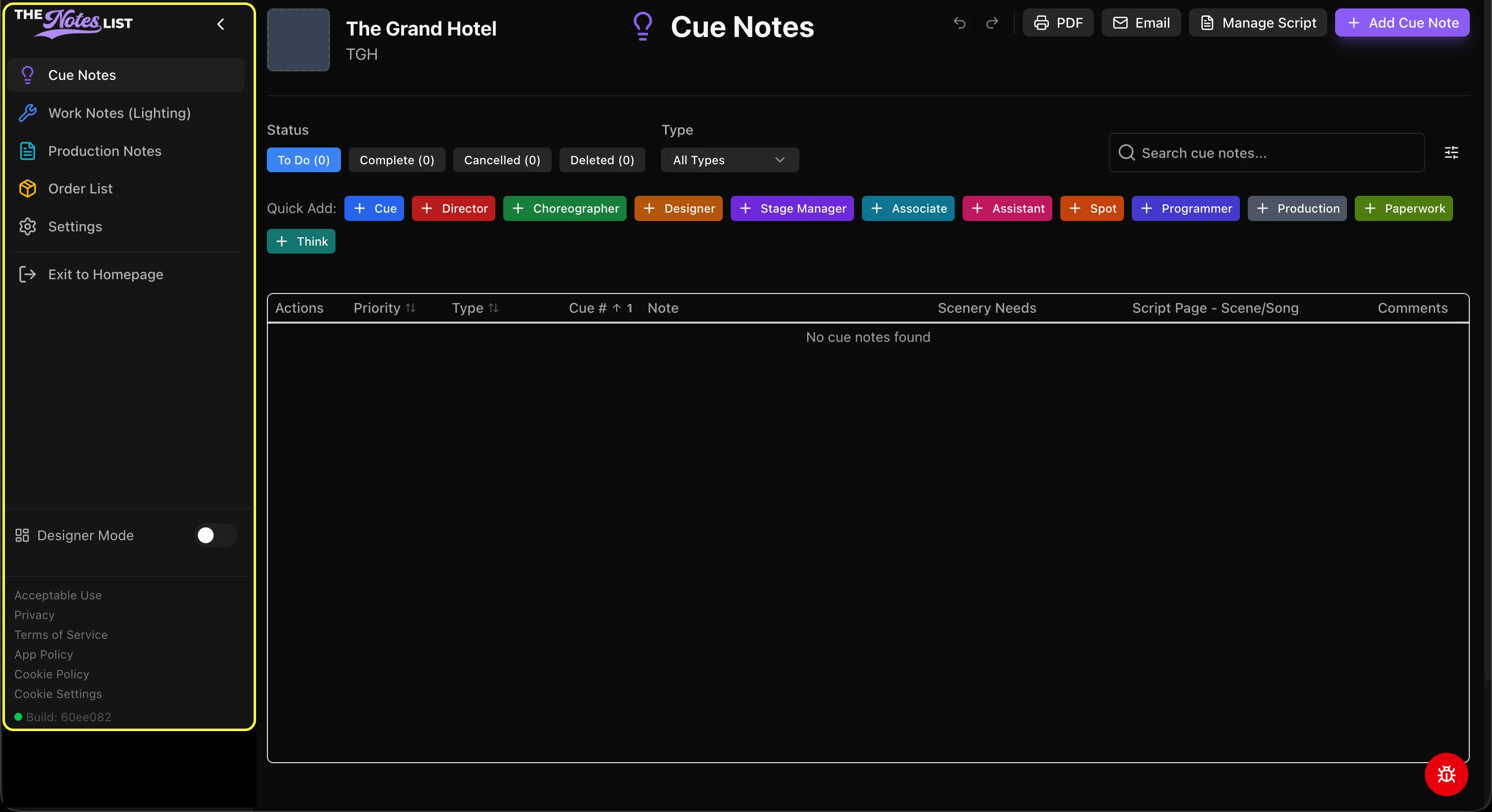
The modules table gives you quick access to any modules you have made, the settings page, and an option to link back out to the homepage. This tab also has a toggle to enable Designer Mode which we will go into further detail later in the guide.
Note-Taking Window
The Note-Taking Window is where the work happens. This window has all of your quick add buttons, a searchable index of your created notes, along with tabs for your integrations and exports (more to come on those later).
So, You've set up your modules along with your desired quick adds and now it is time to take notes.
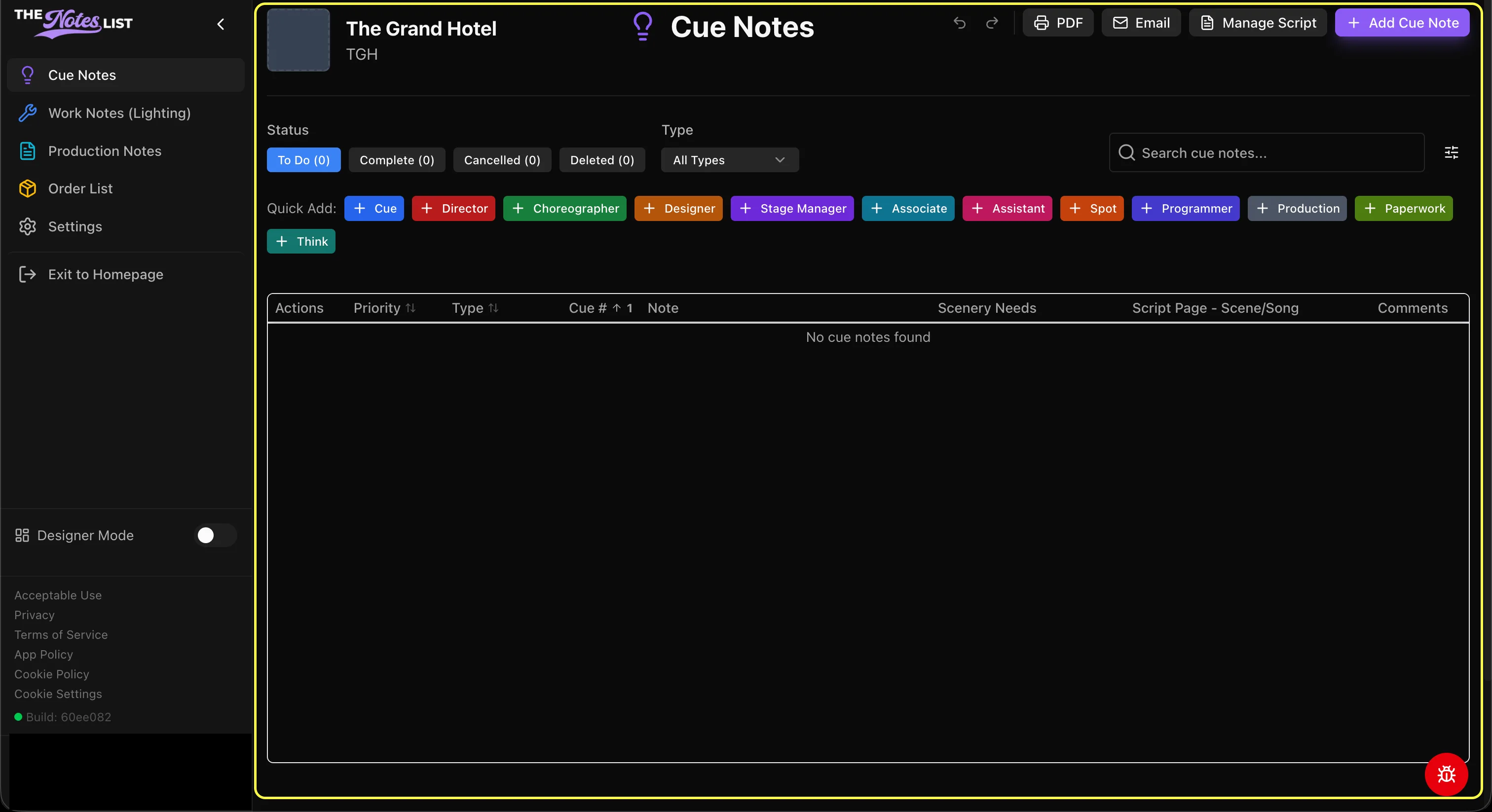
The columns in the note-taking window are customizable as well. To edit these columns, select the icon just to the right of the search window.
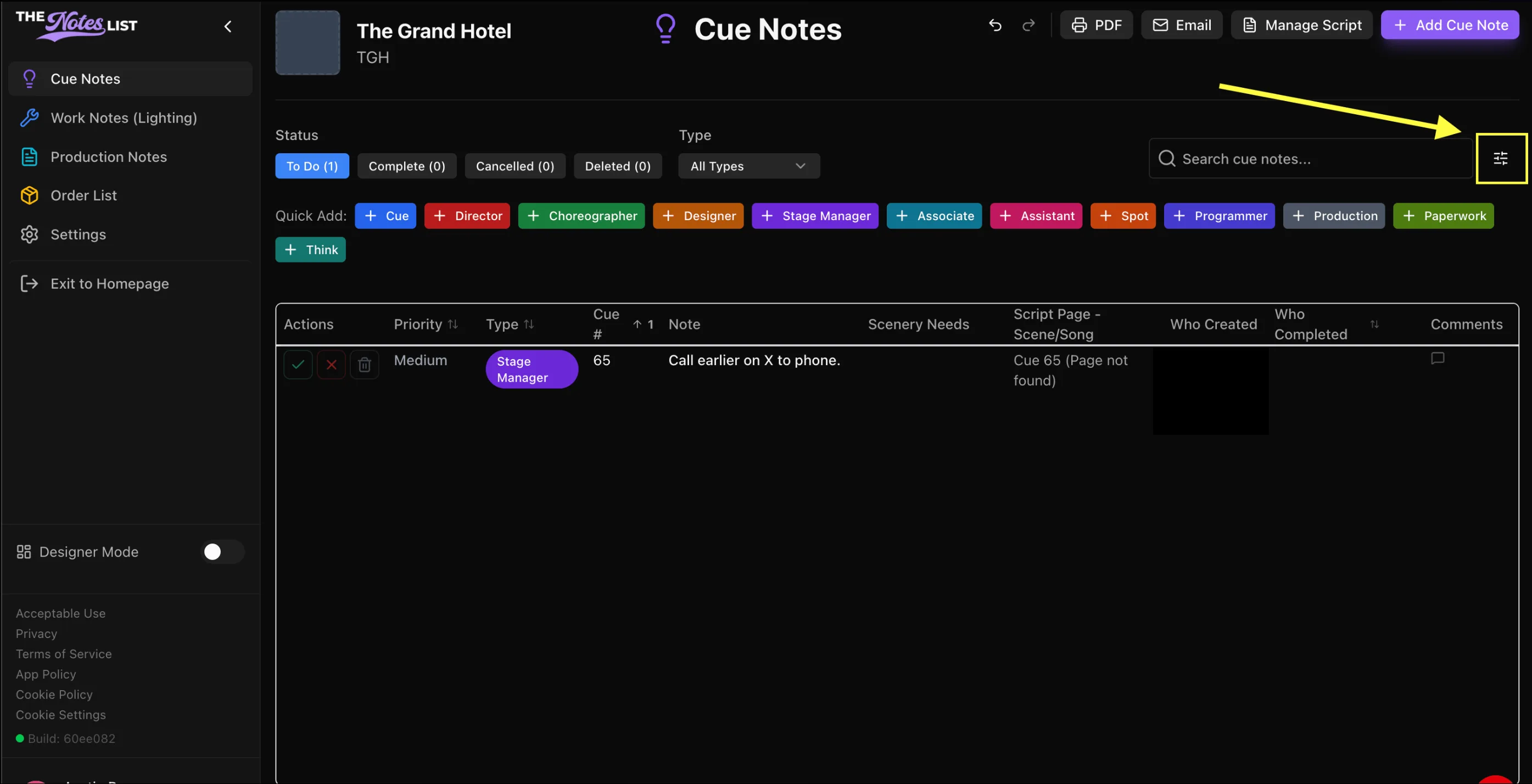
A dialogue box will appear with options to hide and unhide to fit your preferences. These include:
- Priority
- Actions
- Type
- Cue #
- Note
- Scenery Needs
- Script Page
- User identifiers for Completed, Deleted, Reviewed, or Cancelled Notes.