Order List
This section will explore the Order List module.
The Order List module is quite different from other areas of The Notes List. On this page we will break down the Order List module and see how it can fit into your workflow.
Overview
The Order List module is laid out to quickly identify the items that are required to complete the notes that have been taken throughout the course of the session. Items cannot be added directly to this module as they must be added to an existing note. More on that below.
Page Layout
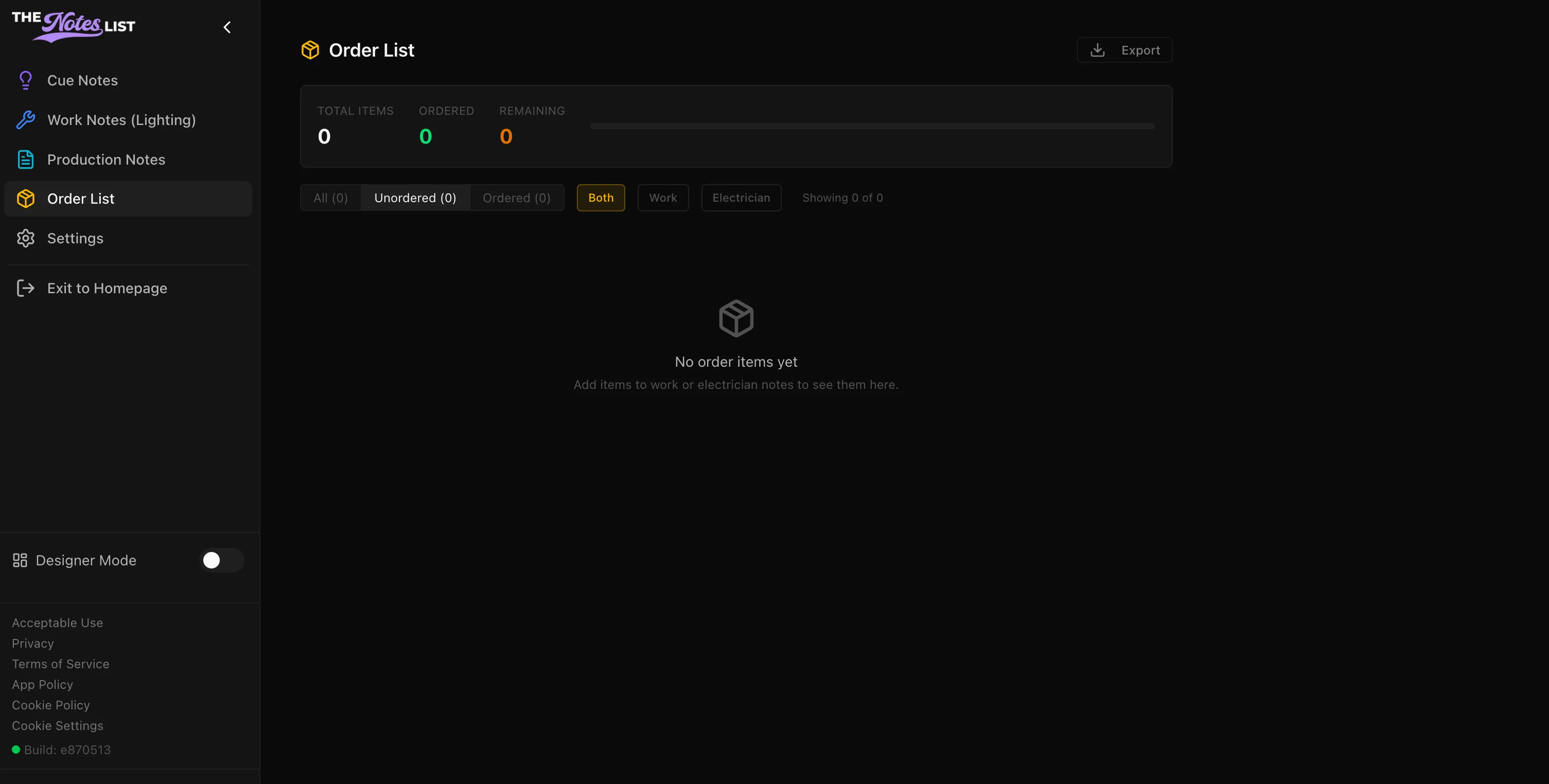
The page layout for the Order List module has a unique configuration compared to the rest of the site. This module is a page that only populates when items are added to notes in the Work Notes (Lighting) module. Instructions are as follows:
Add to Order List
Within the window of an existing note in the Work or Electrician Notes module, The Notes List provides an option to create a record of what materials may be needed to complete the note. This can be found in the Add New Note window by scrolling to the bottom of the window.
For an example, I'm adding a work note for Channel 36 to get a frost change.
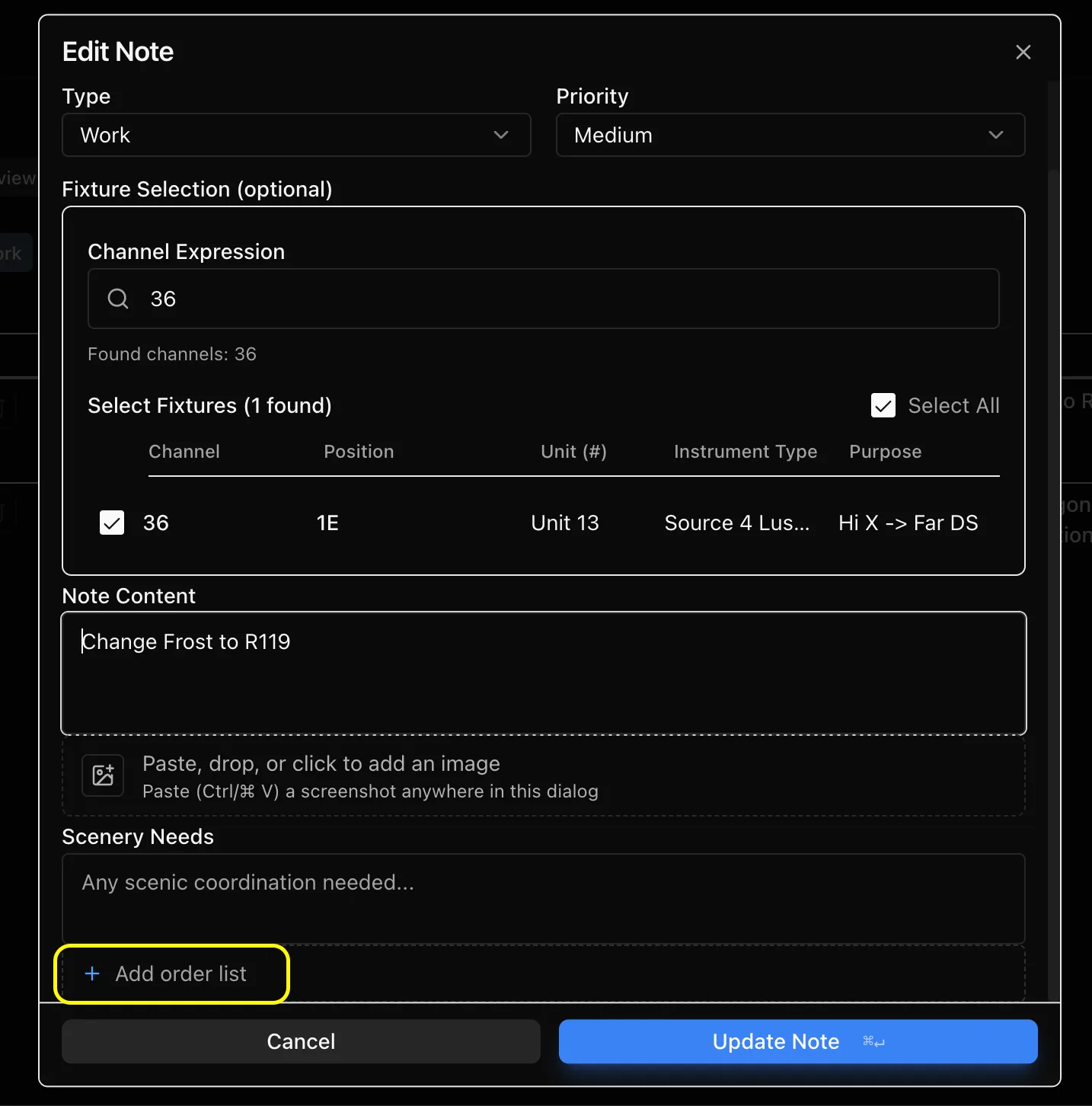
By clicking [ + Add Order List ] an addition to the window will appear. In this window you can input the item you wish to add to the Order List.
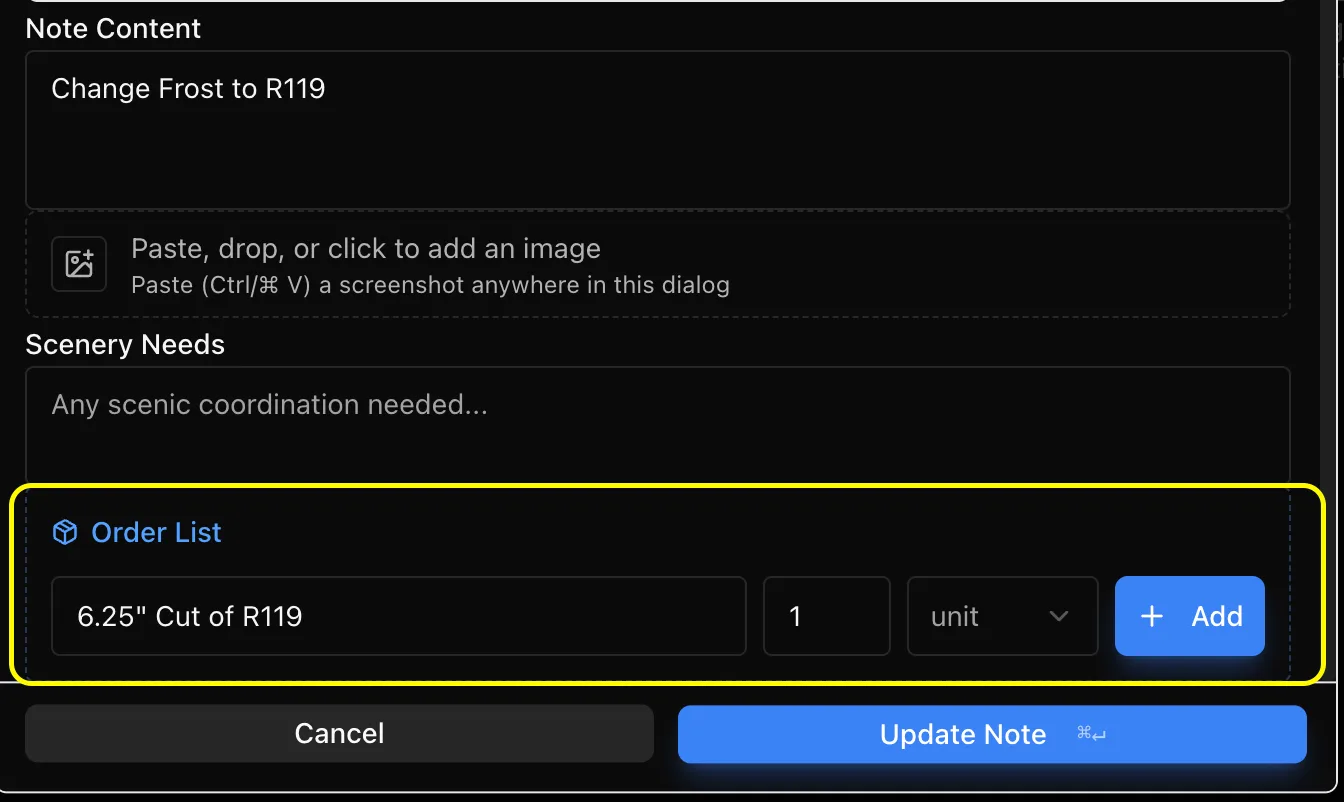
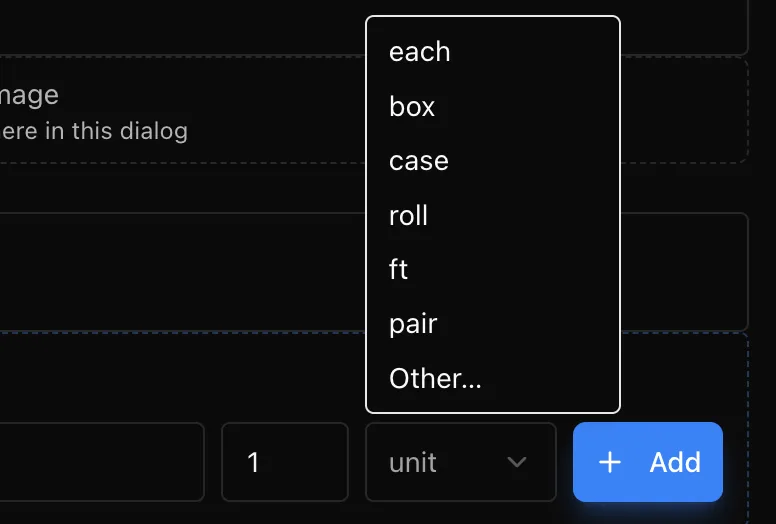
Once you have your item(s) configured, Click [ + Add ] to place the item on the Order List.
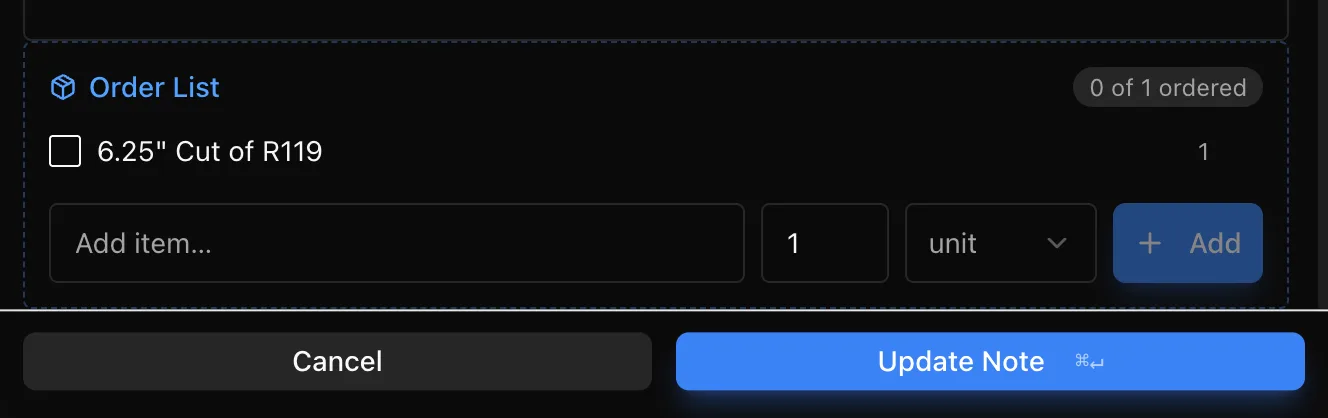
Once added, the item will appear a few places within The Notes List. The first being within the note window itself. It will show the number of each item ordered and provide a checkbox to mark when the order is complete.
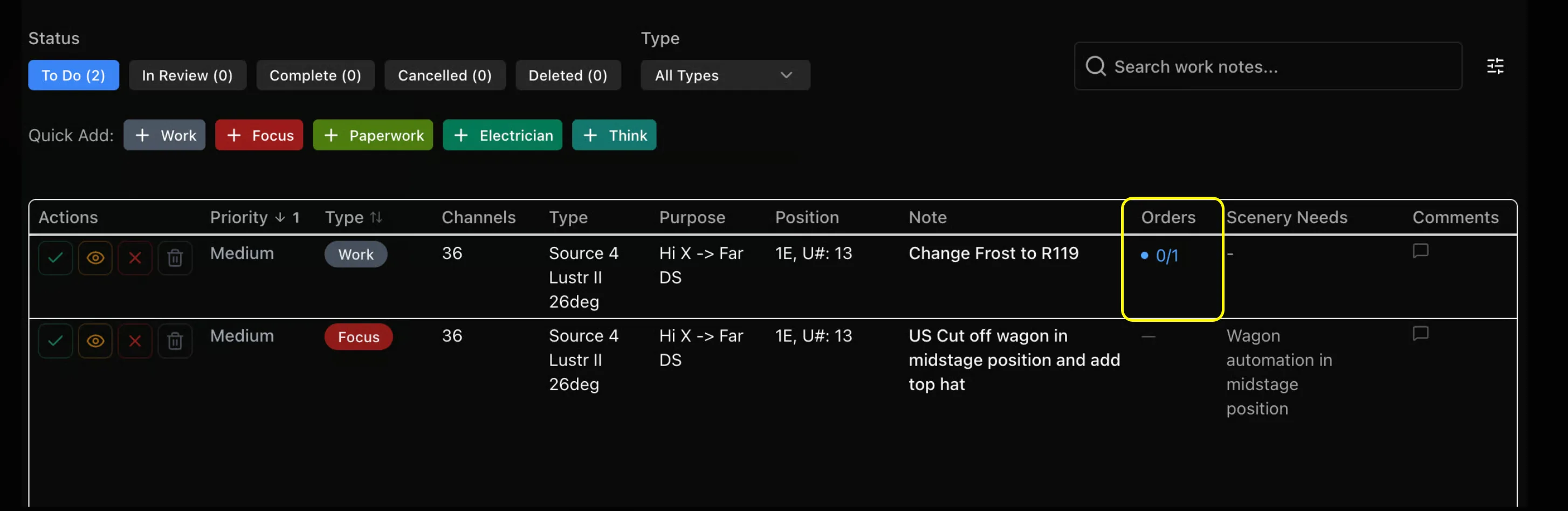
The second location being on the main Note Taking page. An added column will show the number of [ orders filled / orders total ] right on the main page.
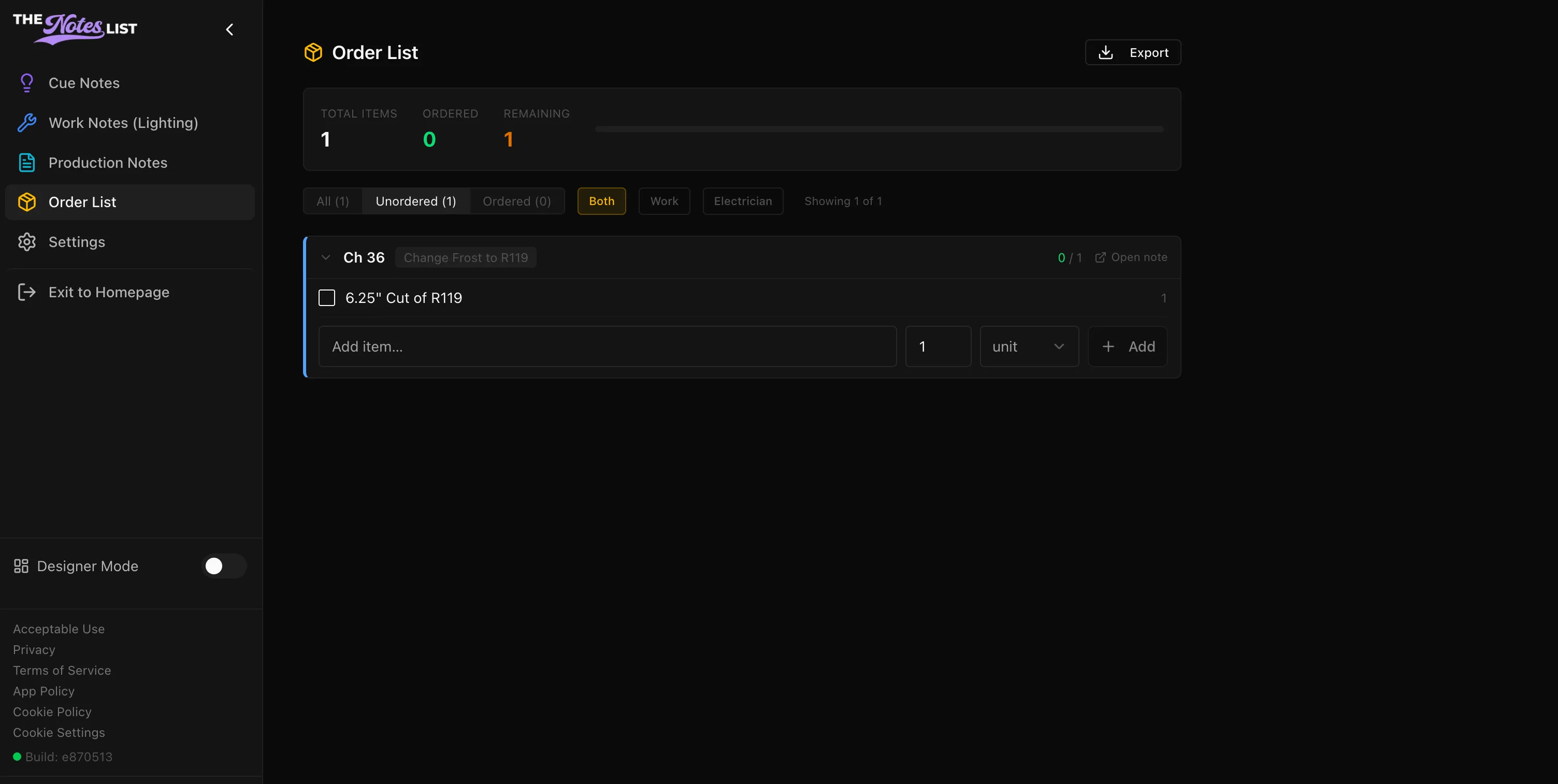
The final place you can view your Order List now that you've completed it is the Order List module. For more information on the Order List module, click here.
Completed Order
To complete an order, check the checkbox in the item window either within the note popup or on the Order List module page.
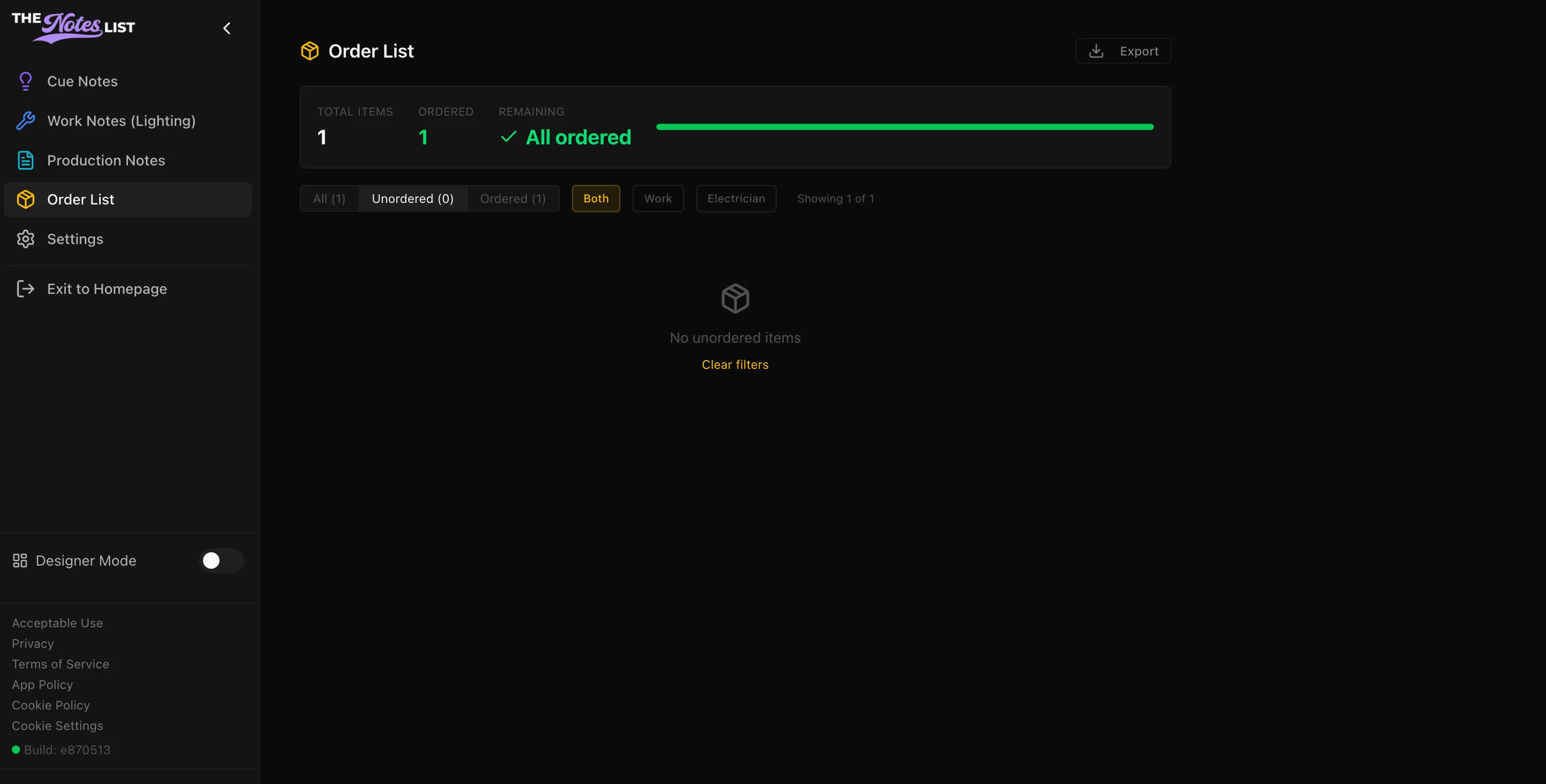
Once your order has been completed, the module will appear with an "All Ordered" confirmation:
Exporting Order Lists
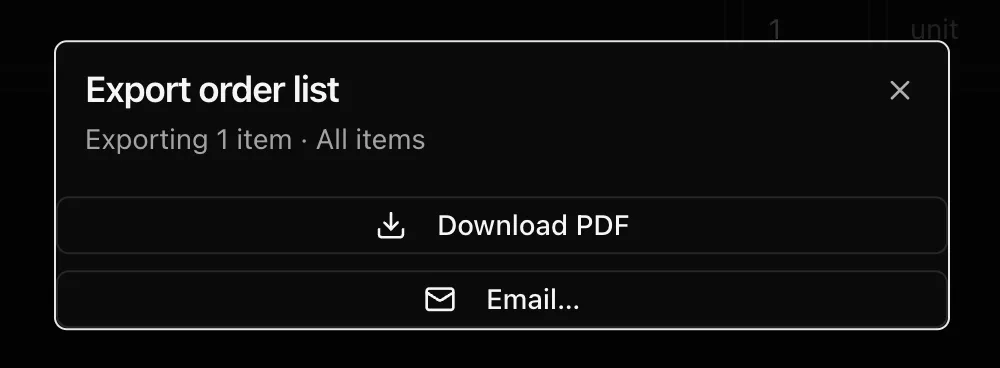
You are able to export your order list using the [ Export ] button on the upper right corner of the Order List module page.
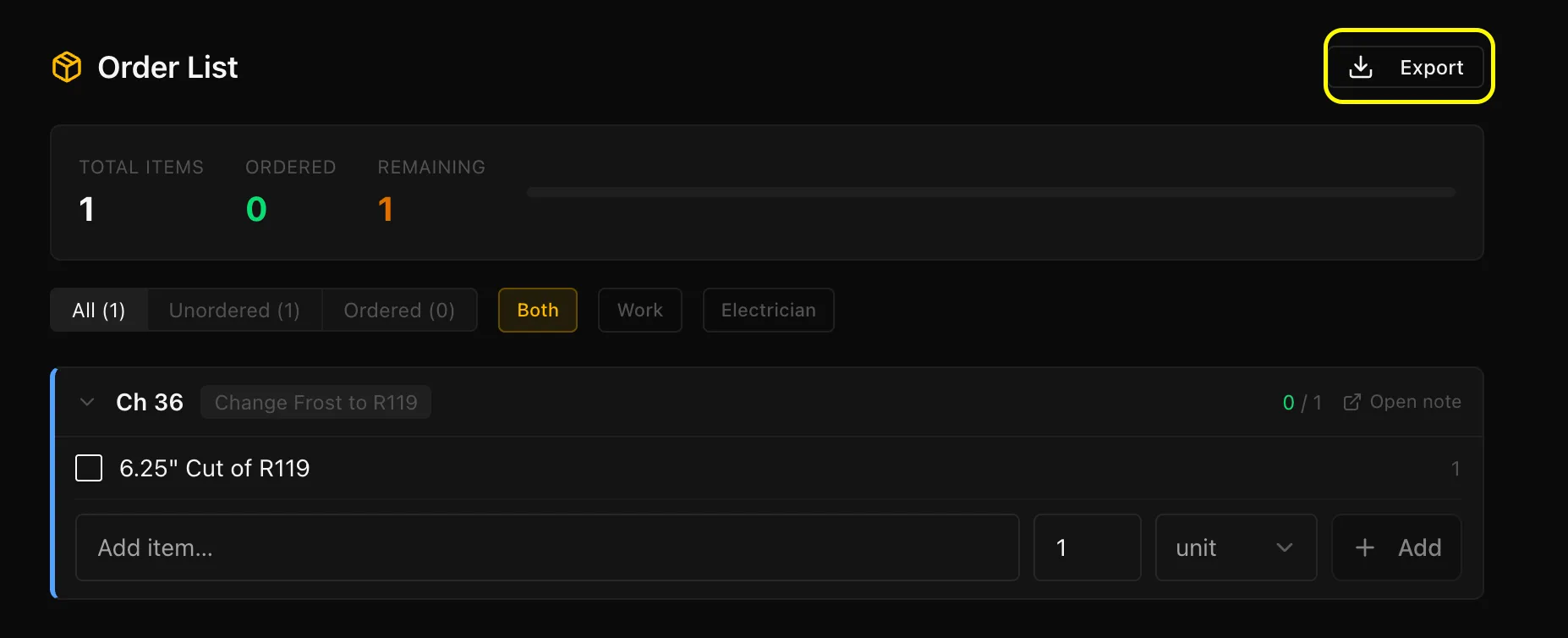
There will be an option to export to email or directly to PDF.