

Email Export
That dreaded moment at the end of your session where you have to compile and painstakingly send out personalized notes? That's over. Let's see how TheNotesList can make this an action streamlined.
Let's work on setting up our email exporting presets so TheNotesList will be able to send out our reports with just a few clicks.
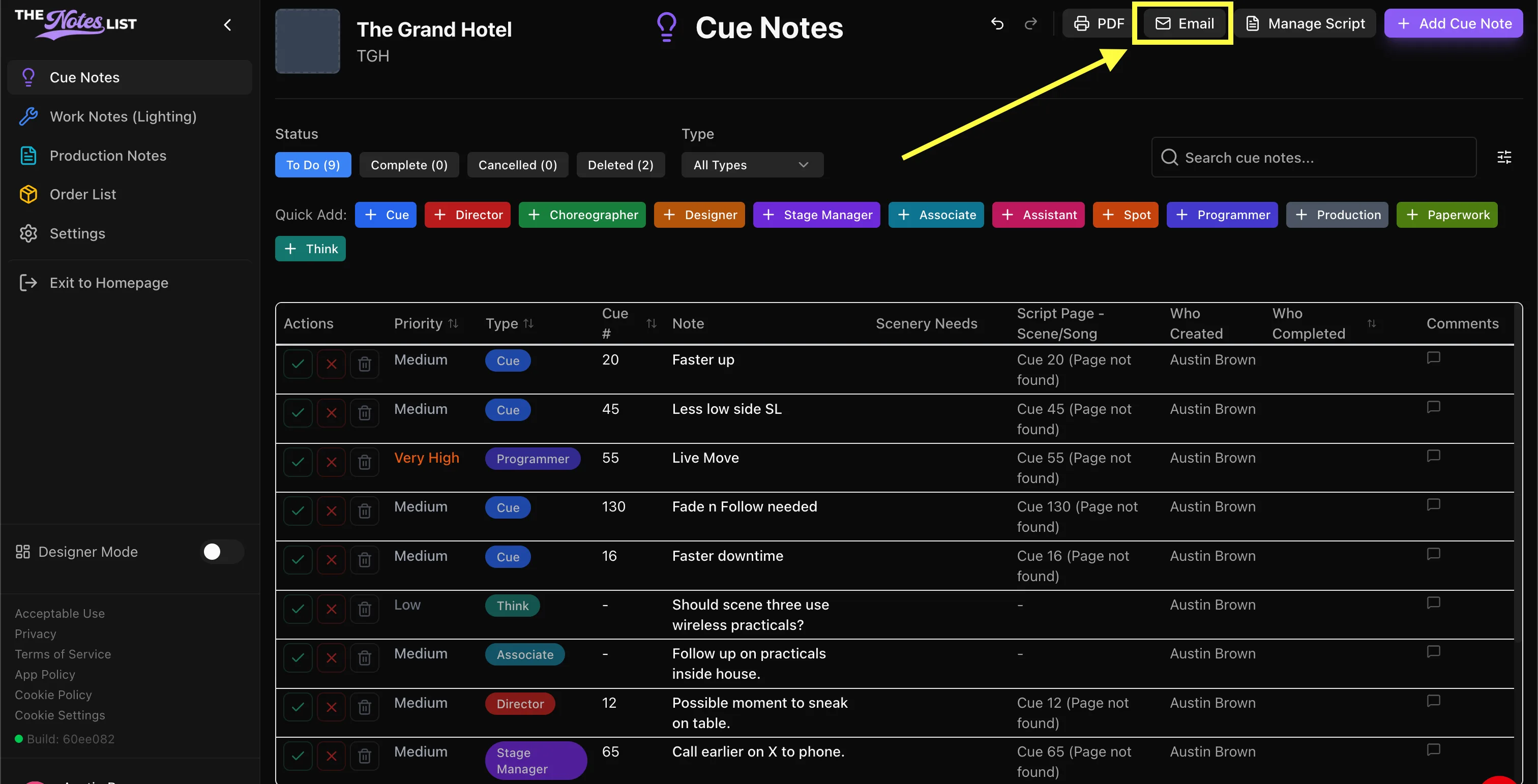
Select Email Exporting
This can be found in the upper right corner of the note-taking window.
Select Export Option
After you select your Email, a window will appear where you can choose your export method.
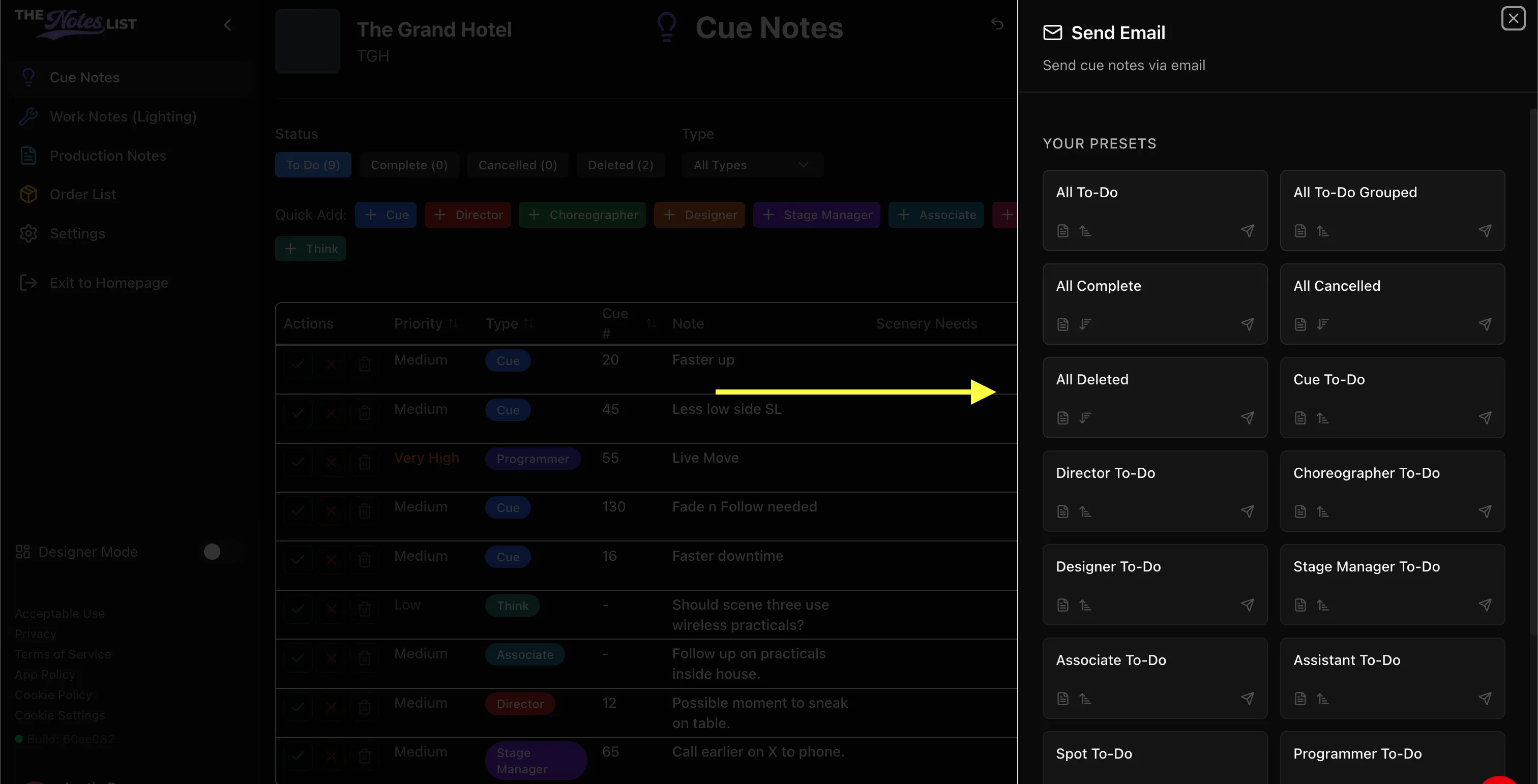
This window includes preset exporting options for all of the Quick Add instances in the note-taking window. These identify the selected portion of notes for specific export.
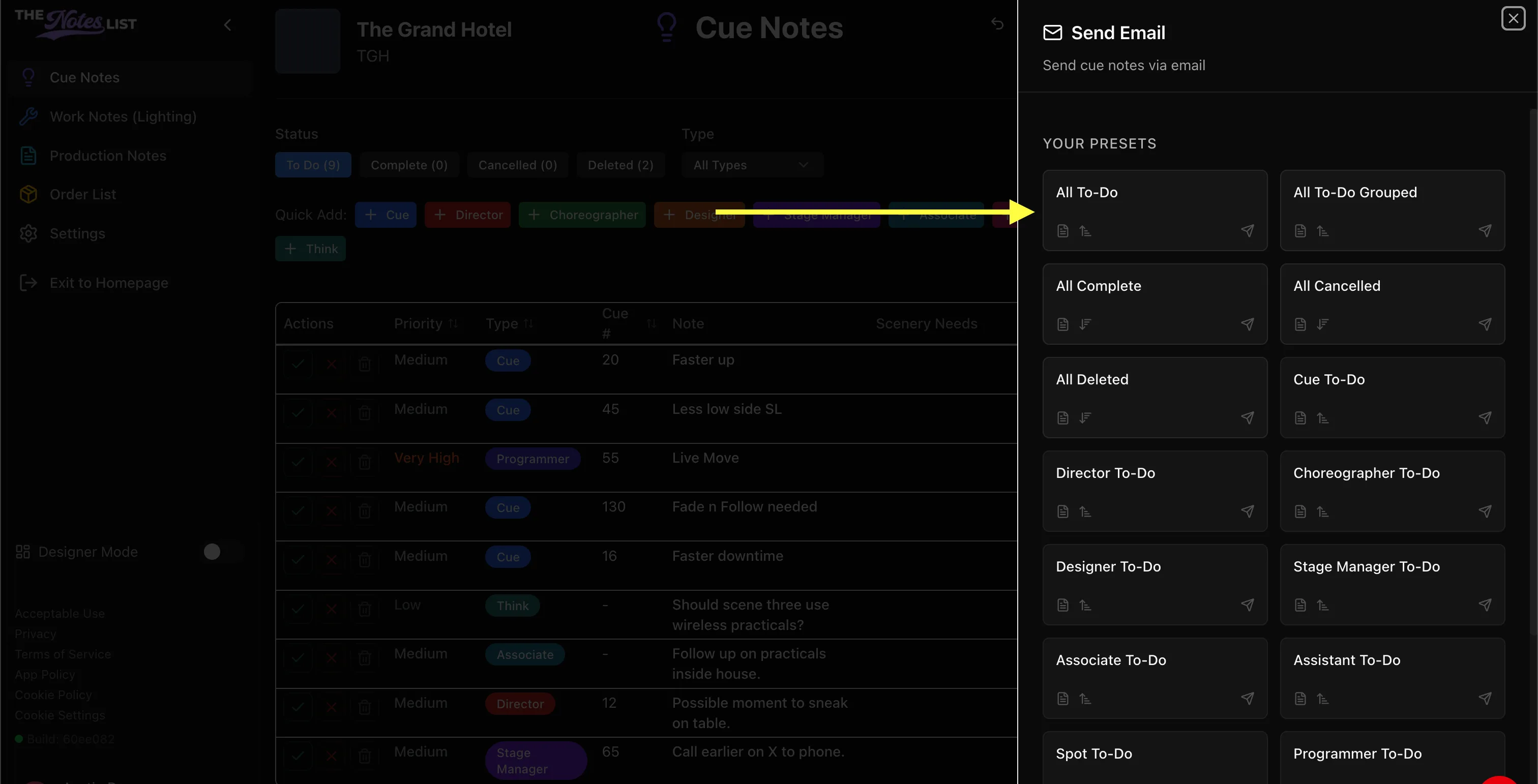
For now, Let's take a look at the All To-Do option, which will compile all notes taken in the module for export. Click the option to open it's window.
Edit Export Option
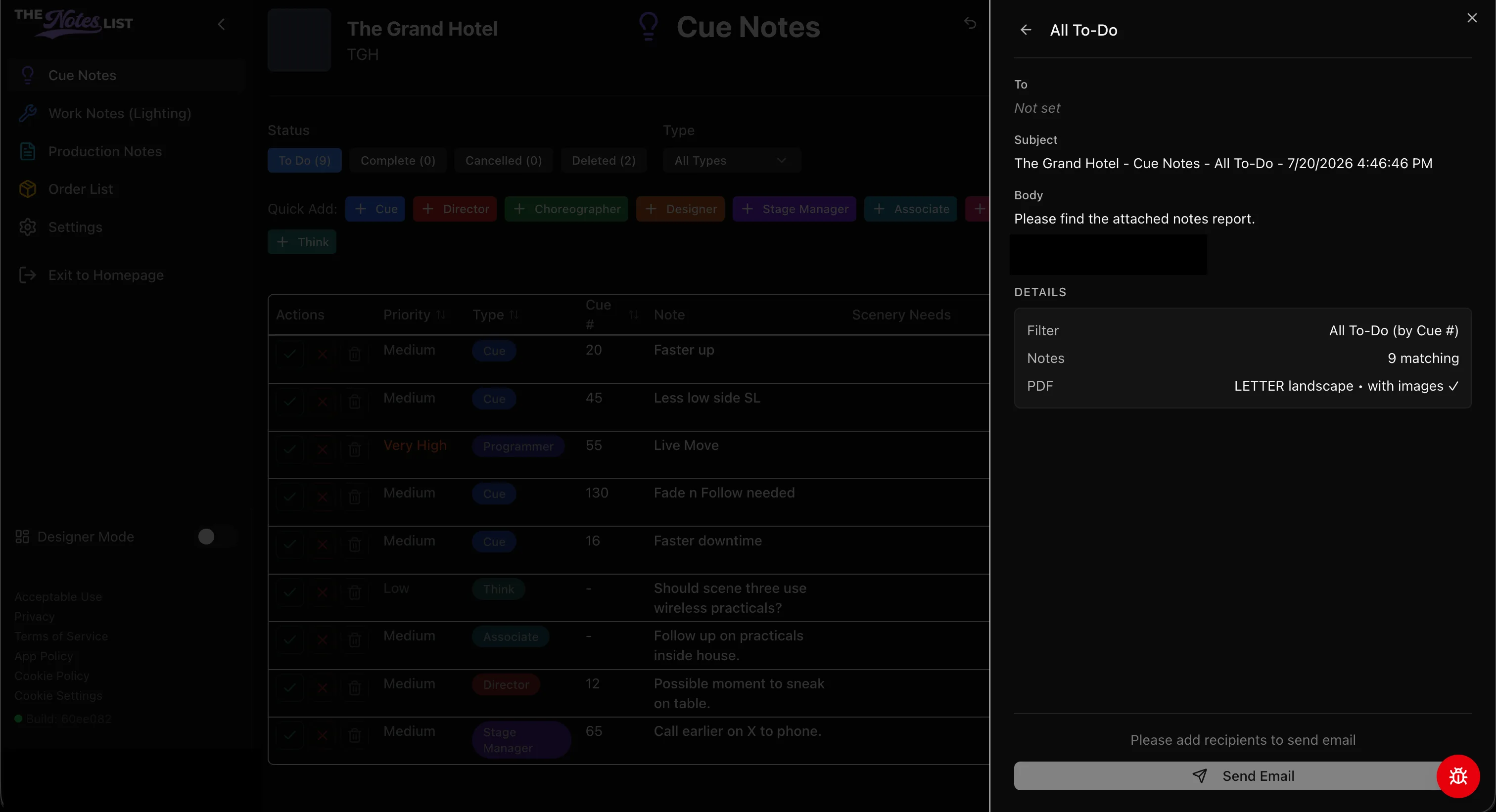
In this window you can:
- Edit the subject line of the email
- Edit the body of the email
- View and Edit the details of the export
- Assign email addresses for export
Let's take a look at editing withing each section. To edit individual sections, hover your mouse above the area you'd like to edit. An icon will appear to the right side of the section, click it.
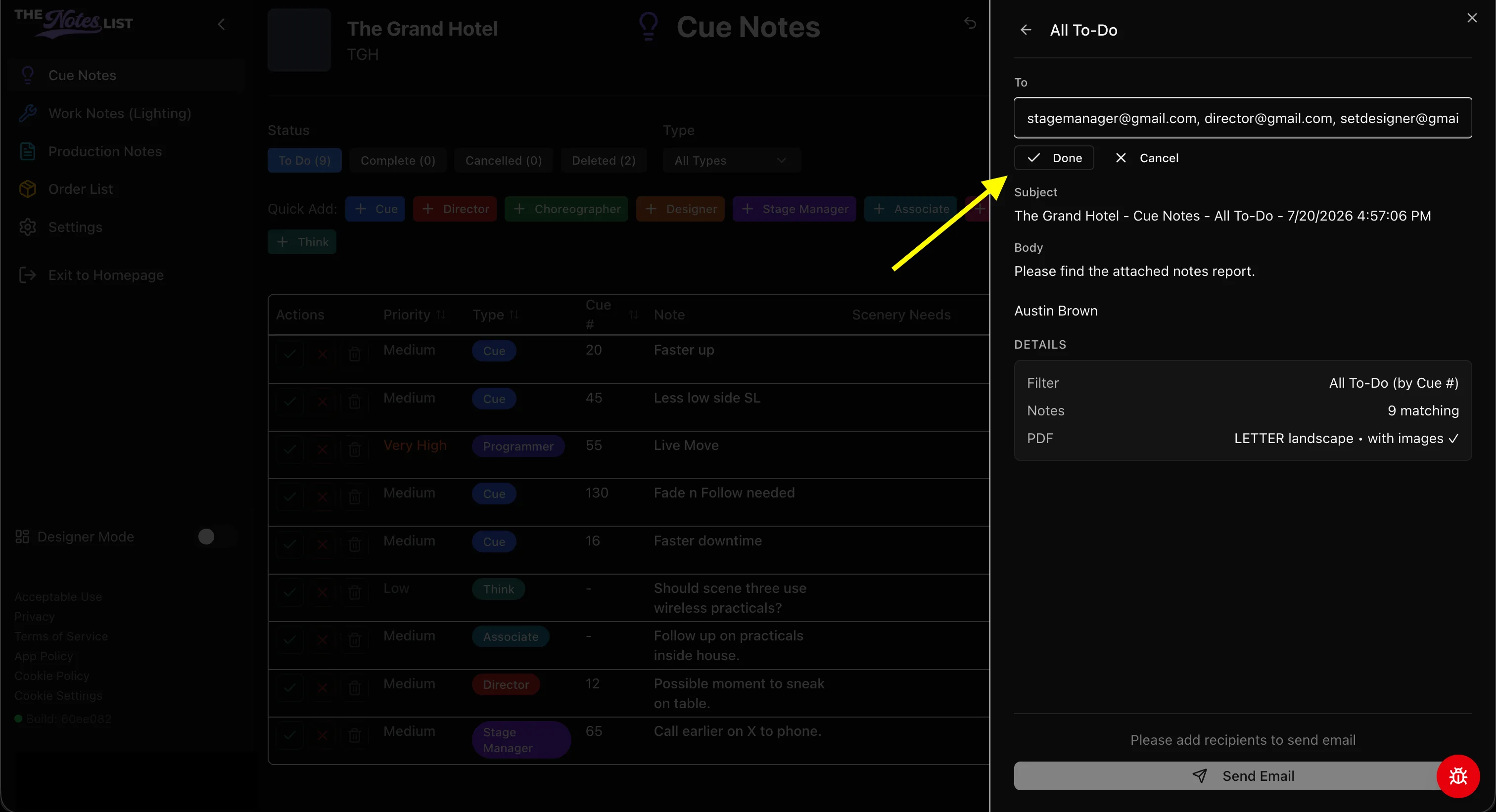
"To"
This field is to input email addresses of collaborators that you would like to receive this batch of exports. Emails should be seperated by commas to send to multiple recipients.
Example: stagemanager@gmail.com, director@gmail.com, setdesigner@gmail.com
Click Done to close the editing window of this section.
"Subject"
This field is to input the subject heading of the emails you will be distributing for this batch of exports. TheNotesList provides customizable tokens within the subject line that help identify this exports qualities. These tokens include:
- Production Title (Included by Default)
- Note Module Name (Included by Default)
- User First Name
- User Last Name
- User Full Name
- Current Date (Included by Default)
- Current Time (Included by Default)
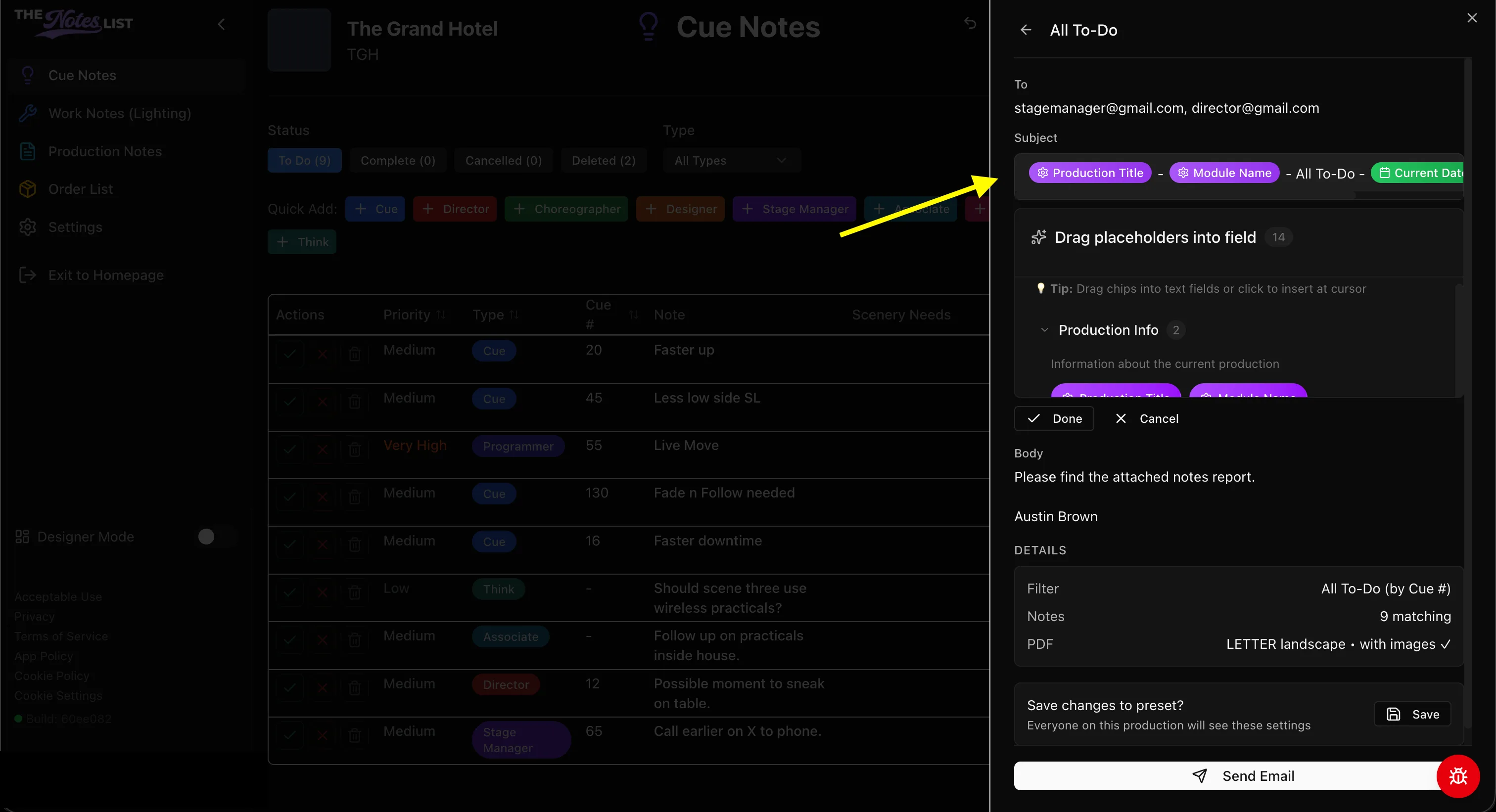
Click Done to close the editing window of this section.
"Body"
This field is to input the body of the emails you will be distributing for this batch of exports. TheNotesList provides customizable tokens within the body that help identify this exports qualities. These tokens include:
- Production Title
- Note Module Name
- User First Name
- User Last Name
- User Full Name (Included by Default)
- Current Date
- Current Time
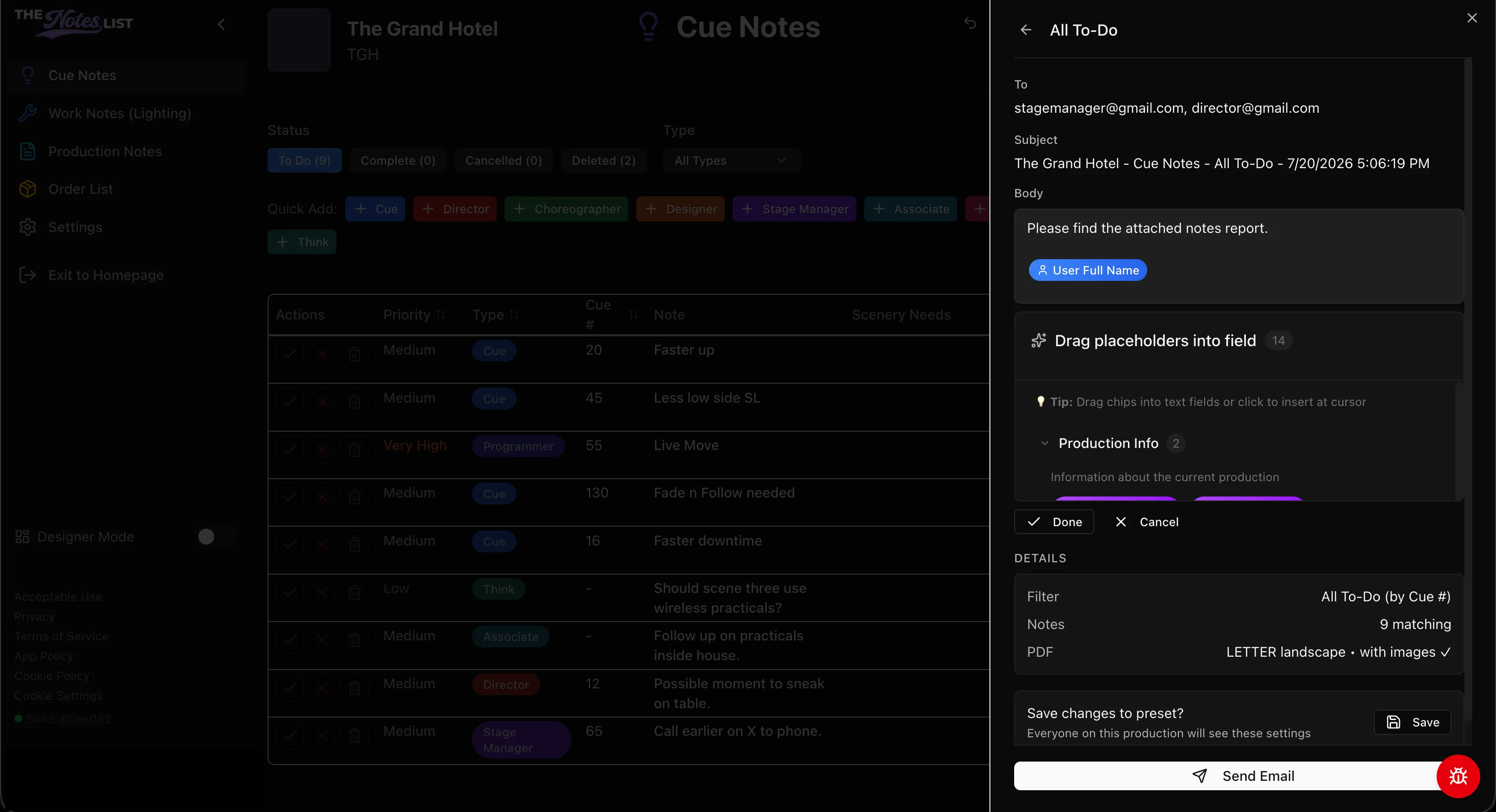
TheNotesList will also populate the phrase "Please find the attached notes report" into the body of the email automatically but this can be customized or removed entirely.
Once you have input the appropriate information, save your preset details. Next time you go to export your notes you are now able to do so using jsut the Send Email button.