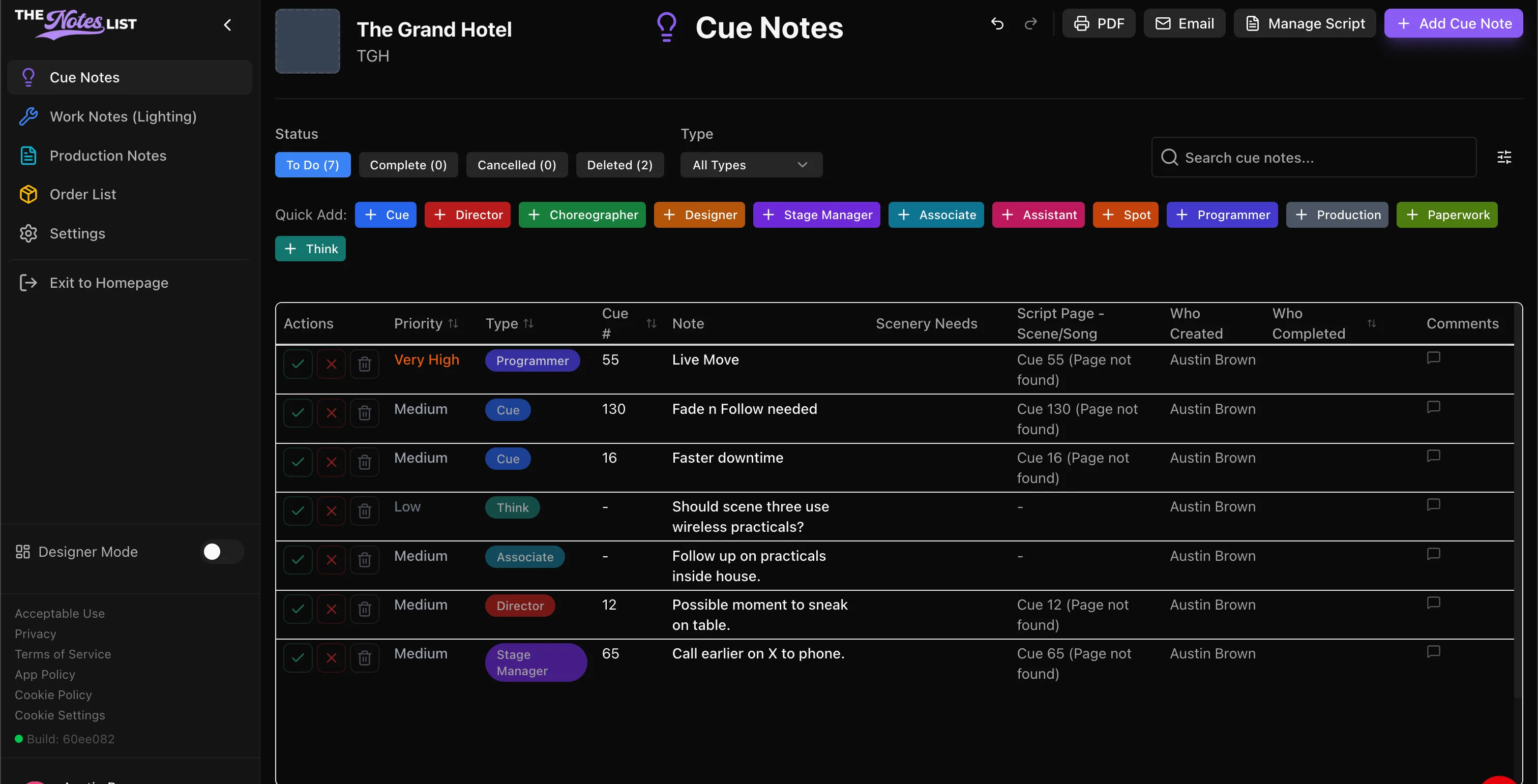
Cue Notes
This section will explore the Cue Notes module.
We've explored setting up some cue notes already but let's discuss the Cue Notes module, it's structure, and when it may fit your needs compared to other modules.
Overview
The Cue Notes module is designed to be your home for your own personal cueing related notes. Choose "Cue" to take quick notes design related cue adjustments or choose any of the provided quick add options to assign a note to one of your collaborators.
This module is specifically powerful when it comes to exporting notes at the end of the session. If you are diligent in your note assigning as you go, then exporting notes to who gets what will be a breeze.
We already looked at this process a bit in the Taking Notes section of the guide but here's a review for how to add a note in the Cue Notes Module.
Add your Cue Note
For this example, we're selecting [+ Cue]
After you select your quick add, a window will appear where you can input your note.
Create your note
In this dialogue box you can: Adjust the note type, set the priority level, enter a corresponding cue number, input the note content, attach an image, and list any scenic needs that pertain to this note. If your script is synced, you will see the bottom of the box populate as well. (More on integrations and exports later.)
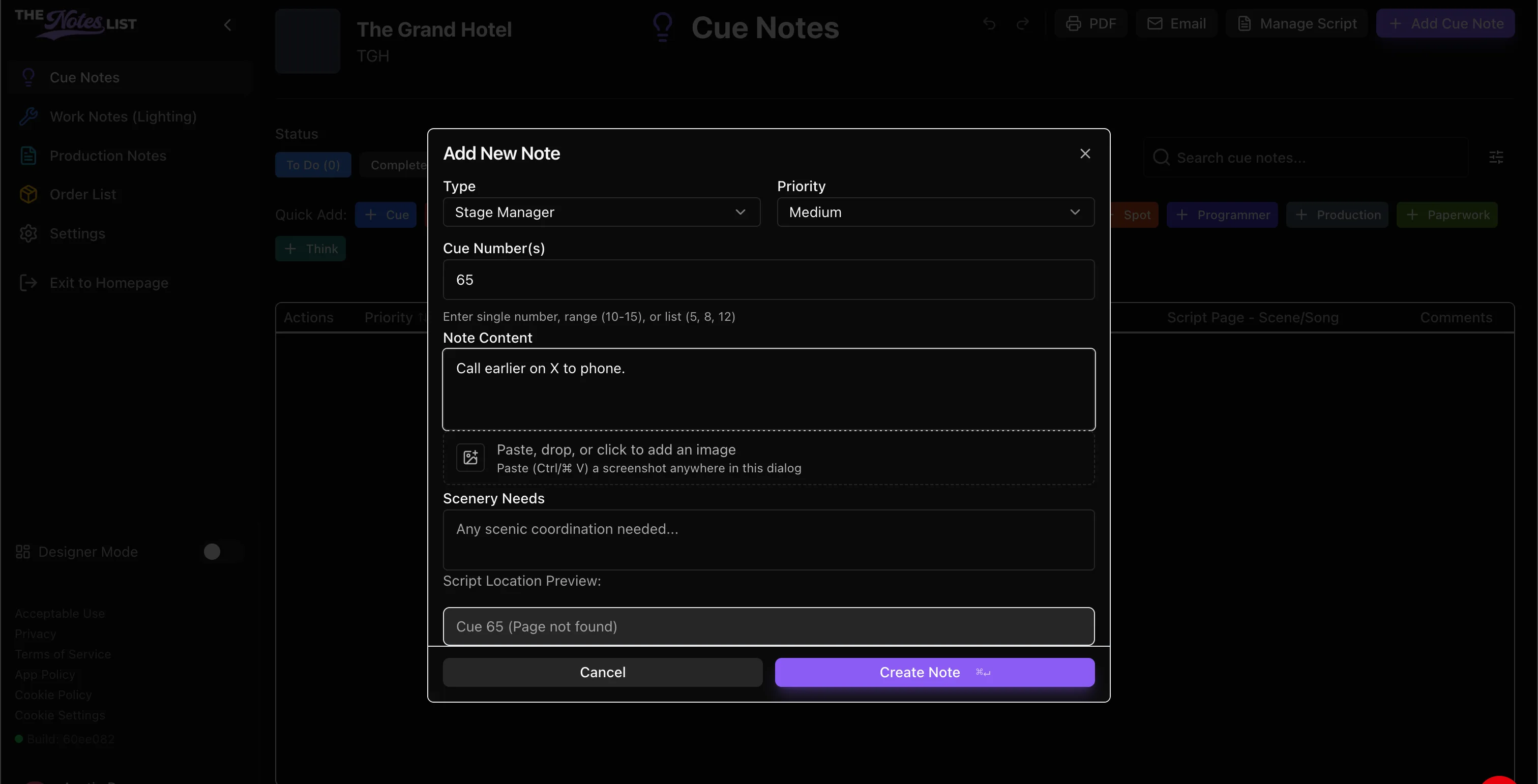
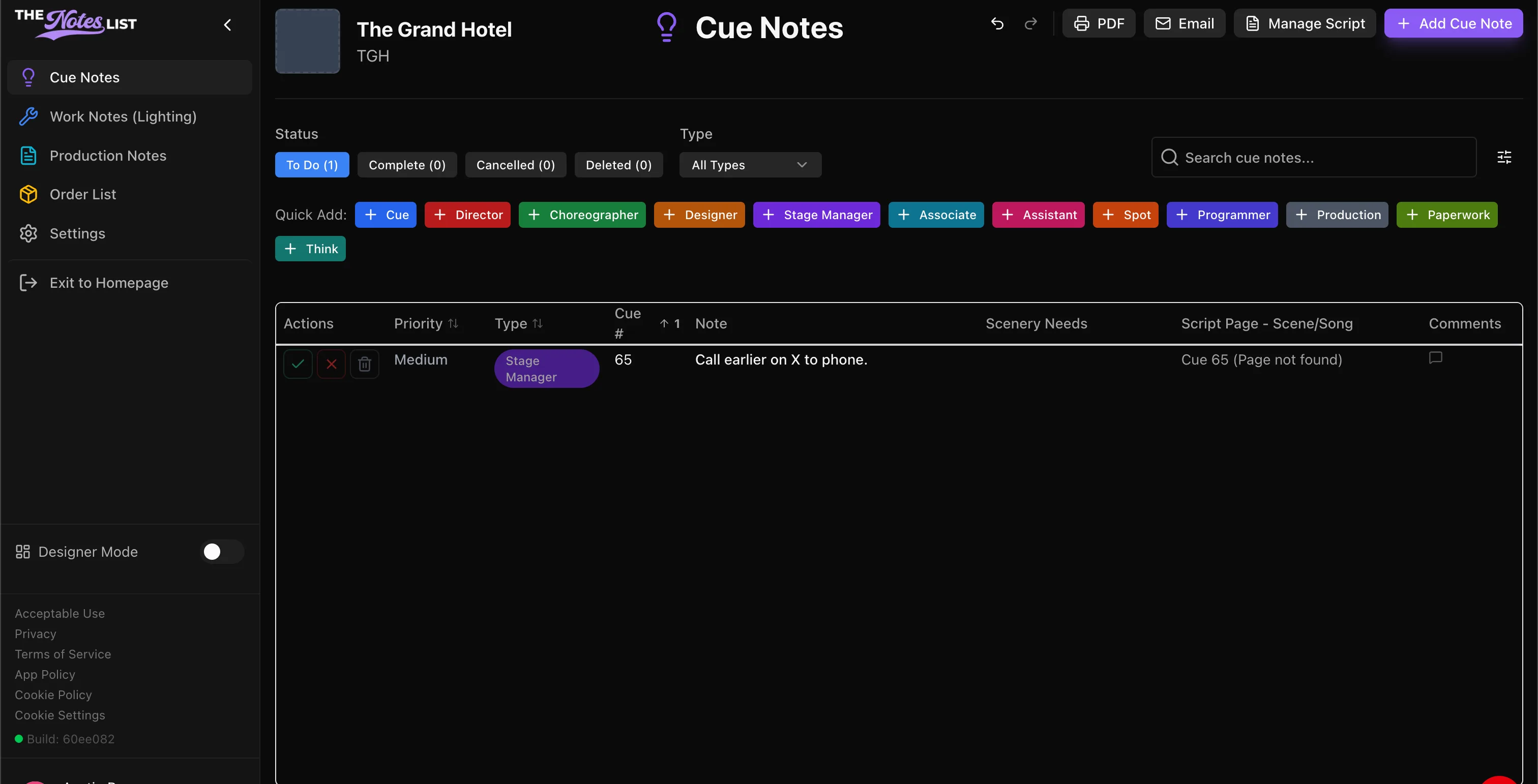
Select Create Note to input the note and go back to the main window. You will see your note populated in the list. TheNotesList automatically populates the note row with a color coordinated icon from your quick add selection to see different note types at a glance.
Once the note is created, all team members will be able to view it live. You have three options to dispose of the note.
- The green check will mark as complete.
- The red X will mark as cancelled.
- The trash icon will delete the note.
You are also able to view completed, cancelled, and deleted notes by clicking the tabs in the Status area.
Sort your notes.
All columns in the note-taking window are sortable by clicking the column title. In this example we've sorted notes using the priority column from highest to lowest.