Exporting Notes
That dreaded moment at the end of your session where you have to compile and painstakingly send out personalized notes? That's over. Let's see how TheNotesList can make this an action streamlined.
We have all of our notes from a productive day and now it's time to export them.
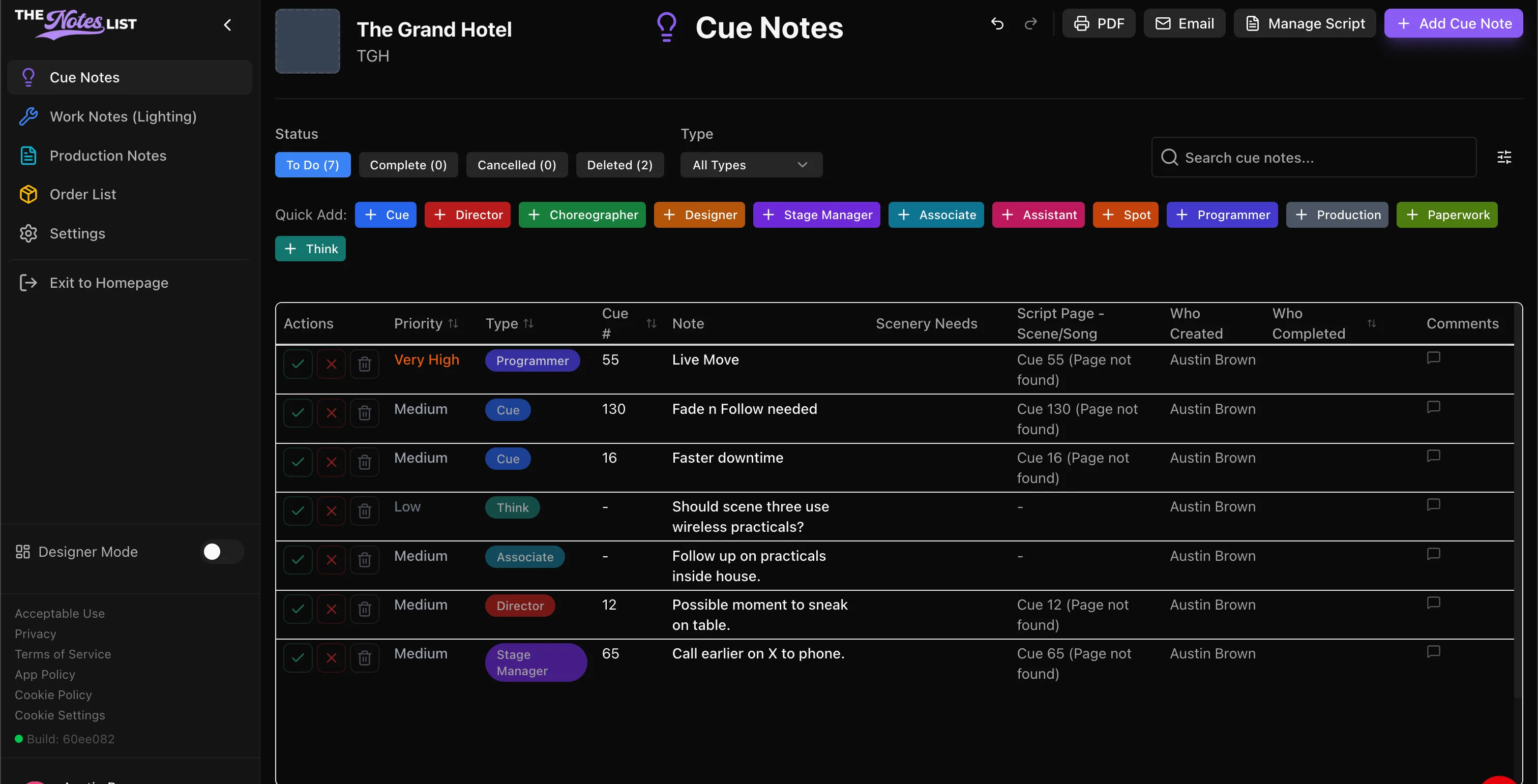
Through TheNotesList you can export your notes straight into email or do an export straight to PDF. Both of these options can be found in the upper right hand corner of the note-taking window.
Select your Quick Add
For this example, we're selecting [+ Stage Manager]
After you select your quick add, a window will appear where you can input your note.
Create your note
In this dialogue box you can: Adjust the note type, set the priority level, enter a corresponding cue number, input the note content, attach an image, and list any scenic needs that pertain to this note. If your script is synced, you will see the bottom of the box populate as well. (More on integrations and exports later.)
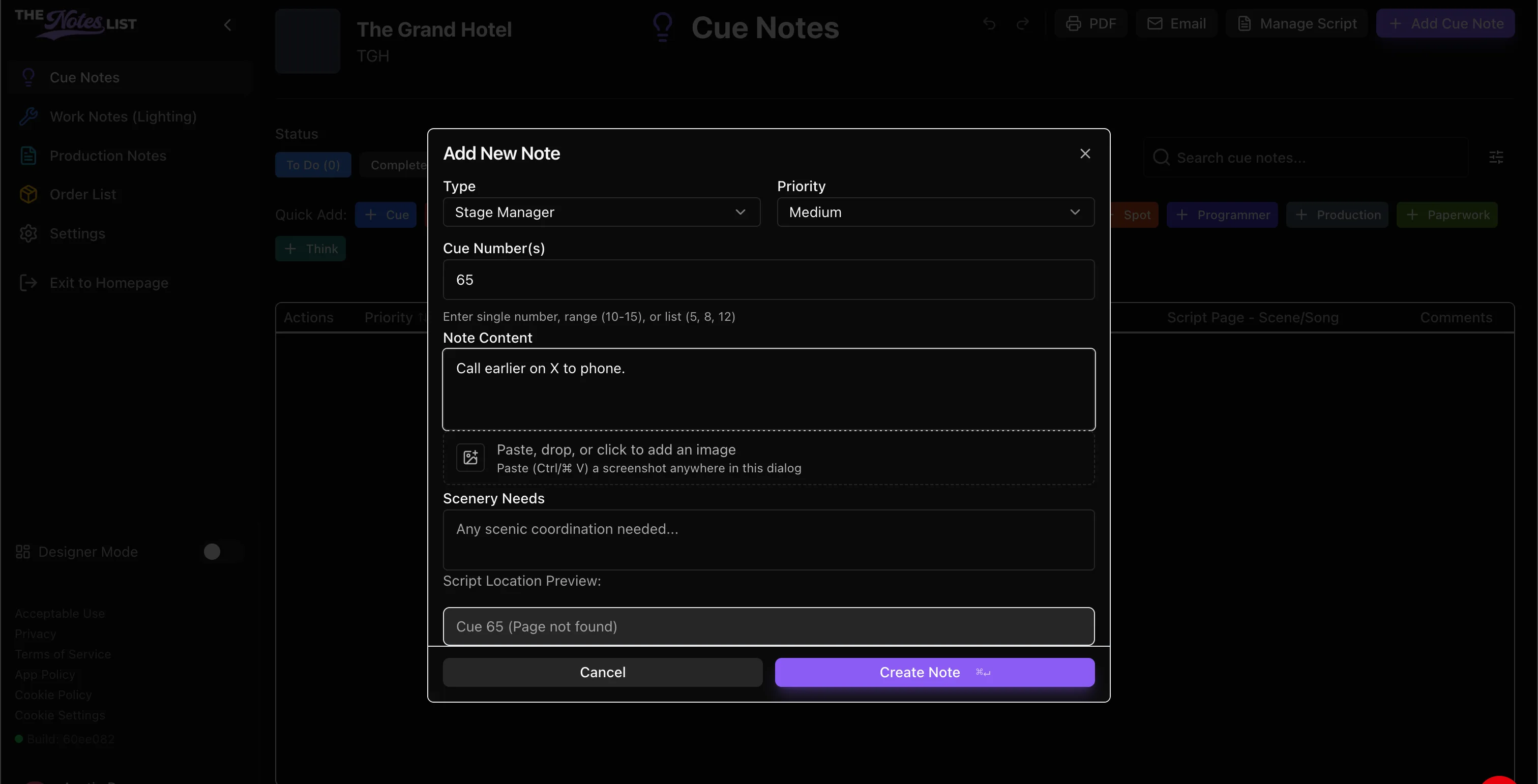
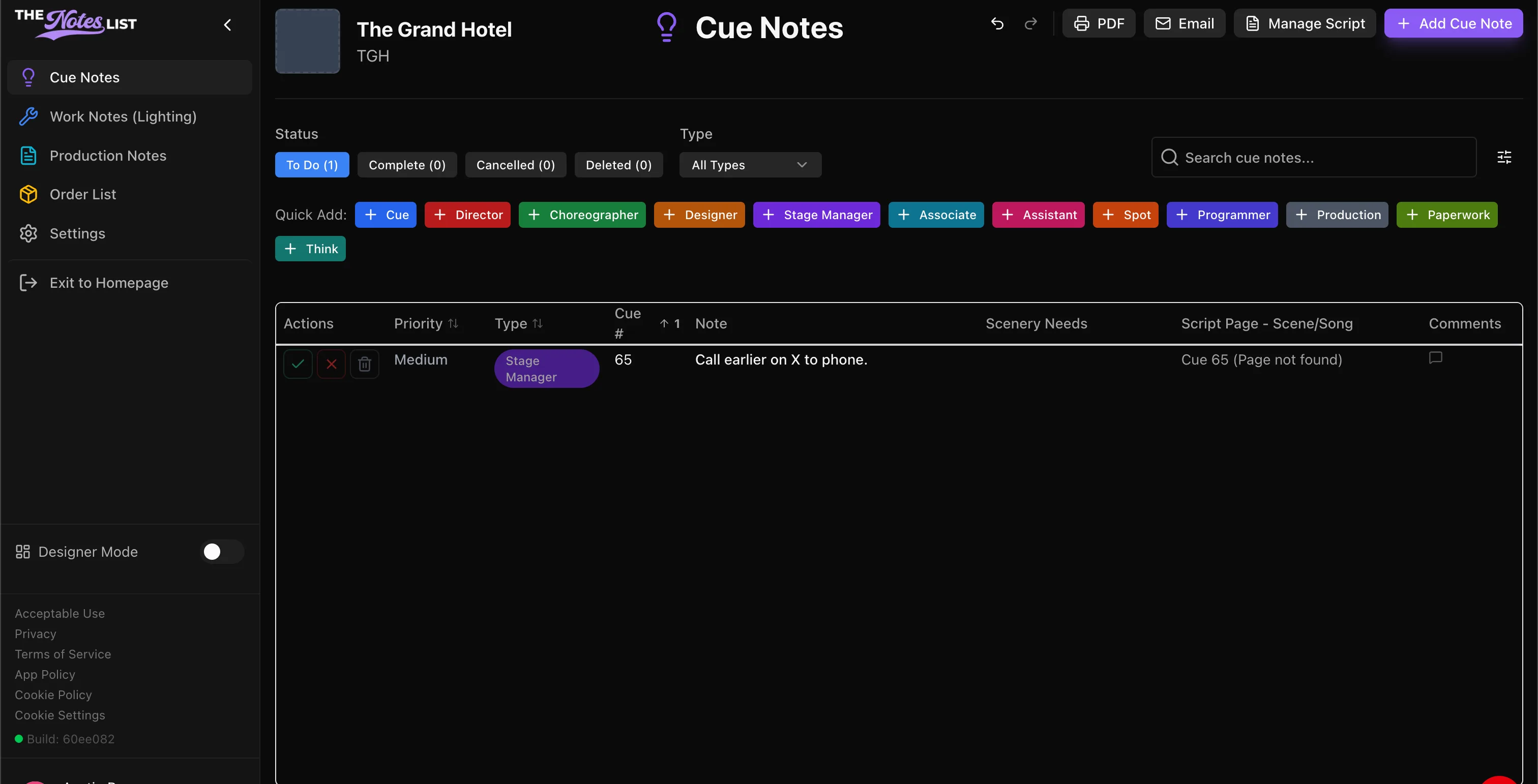
Select Create Note to input the note and go back to the main window. You will see your note populated in the list. TheNotesList automatically populates the note row with a color coordinated icon from your quick add selection to see different note types at a glance.
Once the note is created, all team members will be able to view it live. You have three options to dispose of the note.
- The green check will mark as complete.
- The red X will mark as cancelled.
- The trash icon will delete the note.
You are also able to view completed, cancelled, and deleted notes by clicking the tabs in the Status area.
Sort your notes.
All columns in the note-taking window are sortable by clicking the column title. In this example we've sorted notes using the priority column from highest to lowest.