

Designer Mode
Designer Mode (Toggled on in the main notes page) can provide a simplified user experience for quick completion of notes.
Toggle Designer Mode On
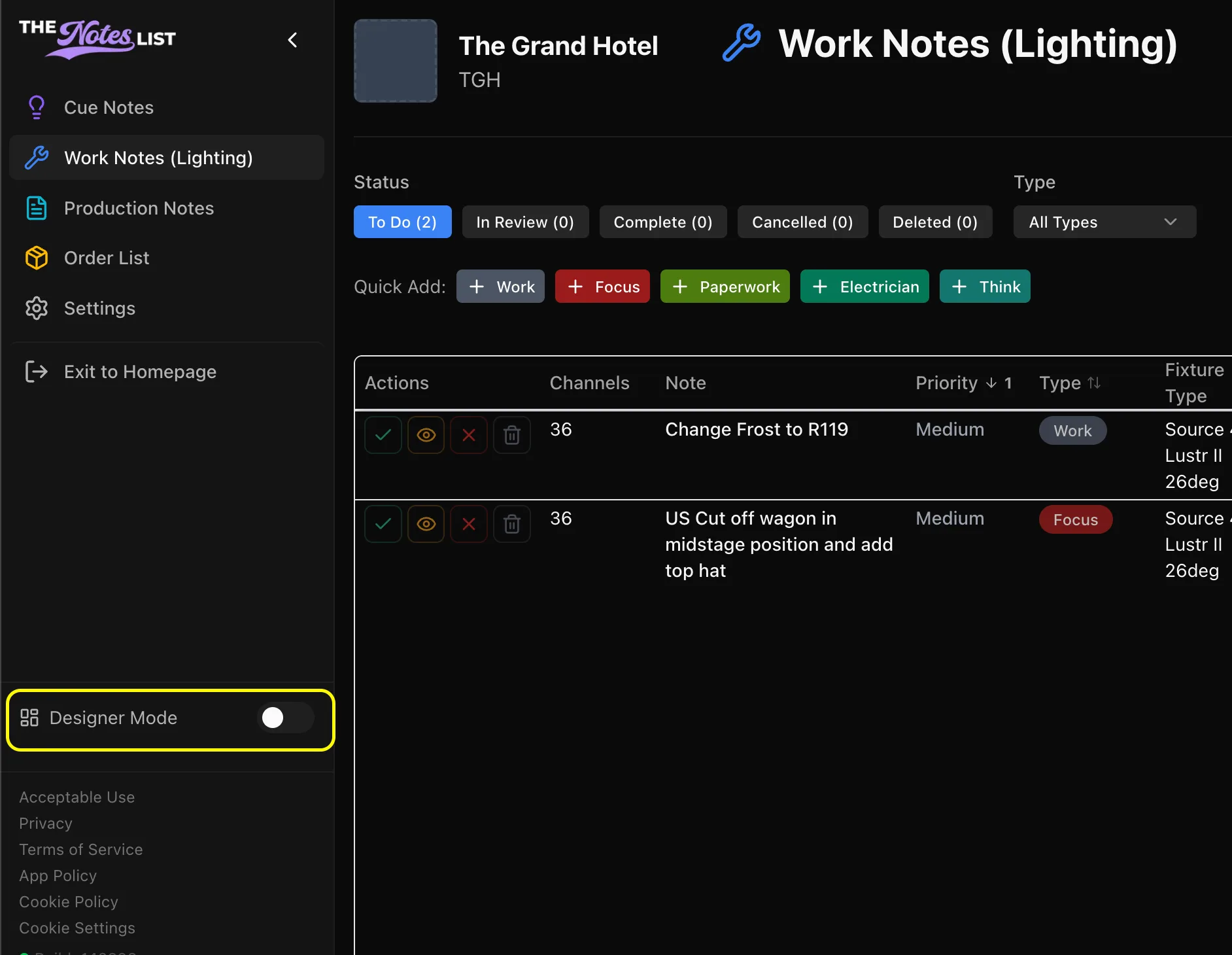
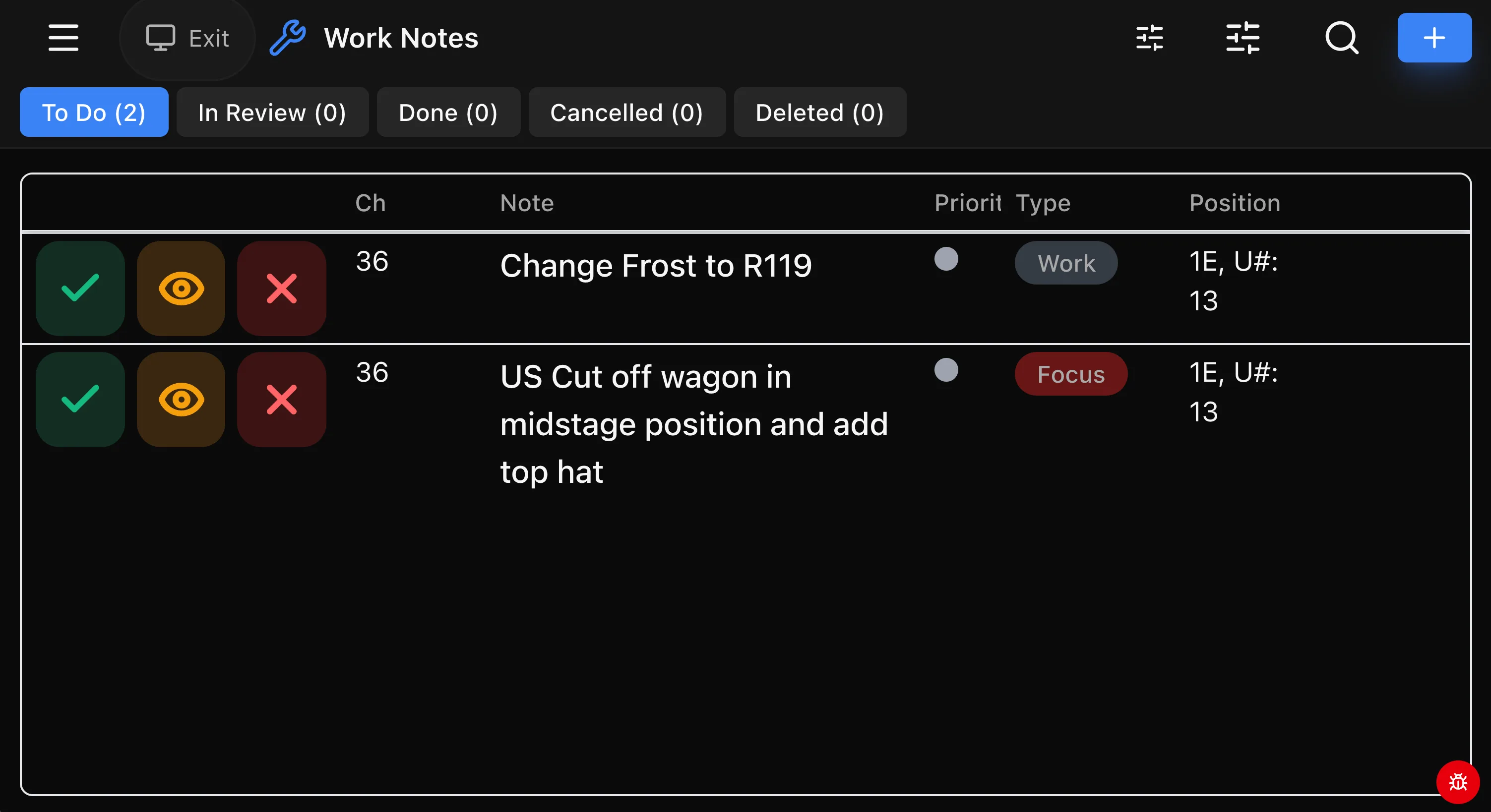
Page Layout
This simplified layout still includes the ability to mark notes as completed or cancelled, send them for approval, or delete them with the trash icon at the right end of the row. This page has fully customizable column layout as well, saved to your account in the same way as described in Setting up your Workflow.
Sort your notes
Open the Sort button at the top of the page (on a phone, the Filter and sort button). Pick a field under Sort By, then choose Ascending or Descending.
Pick a second field and the first one becomes the tie-breaker, the same as clicking two column titles: the two choices are numbered 1 and 2. Pick the one marked 2 to swap them. When Date comes first, it sorts by day, so Date then Cue # lists each day's notes in cue order. Pick the highlighted 1 again, or select Clear Sort, to stop sorting.
Filter your notes
Open the Filter button at the top of the page (on a phone, the Filter and sort button) to filter by Type and Priority. Date created and Created by work the same as More Filters in Setting up your Workflow, and also clear when you reload the page. Type and Priority stay set. The Work + Electrician page doesn't have Date created or Created by.